How to Safely Remove Startup Programs on Windows 11
Learn how to remove startup programs on Windows 11 safely with Settings, Task Manager, the Startup folder, services, Task Scheduler and the registry.
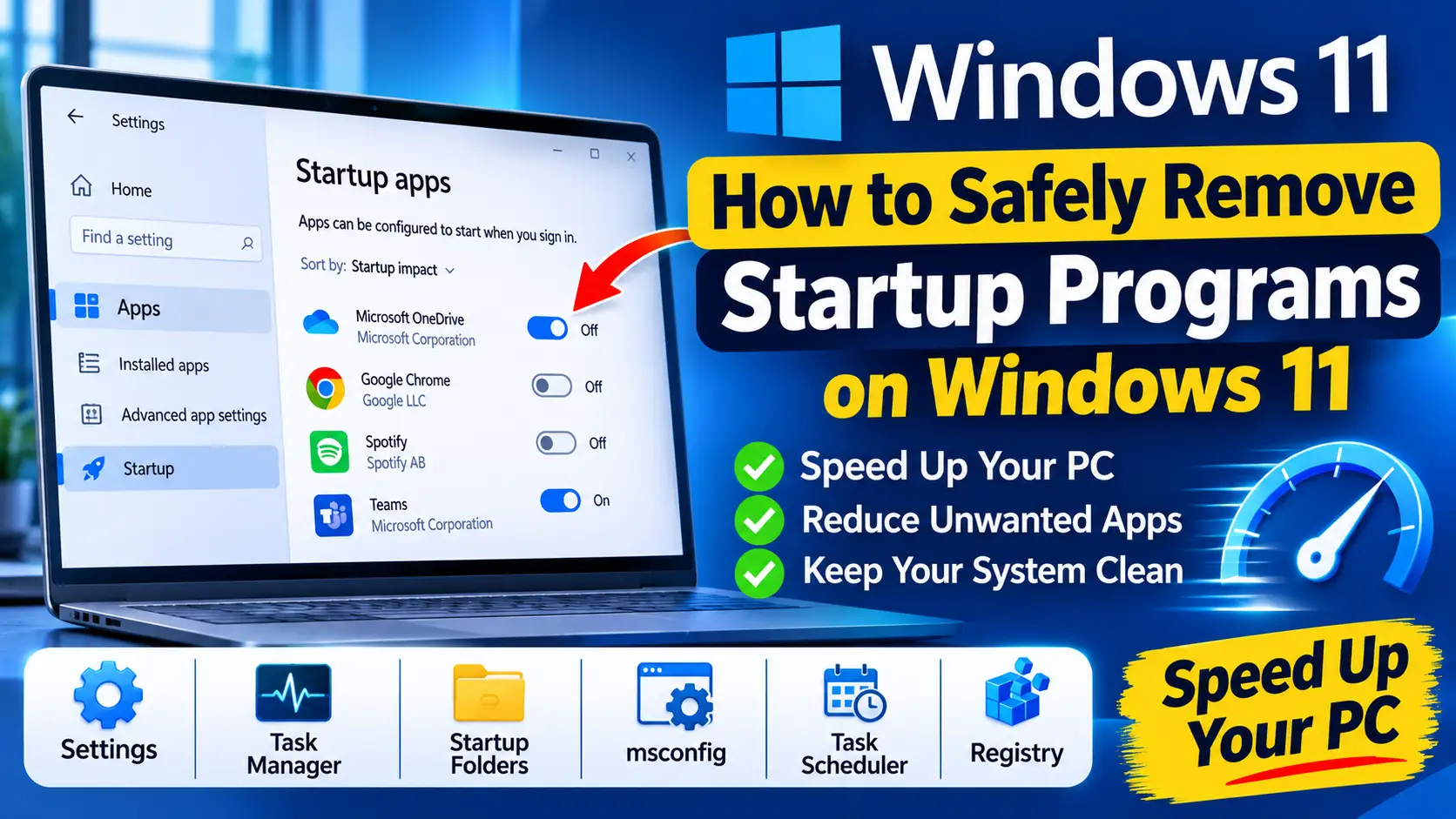
Table of contents
- Before you start: what is safe to disable
- Method 1: Settings → Apps → Startup
- Method 2: Task Manager Startup apps
- Method 3: Clean the Startup folders
- Method 4: Review services with msconfig
- Method 5: Check Task Scheduler
- Method 6: Registry Run keys (advanced)
- How to identify an unknown startup entry
- The faster way: UniClean's Startup Manager
- After the cleanup
Every app that launches at sign-in adds a little to your boot time and memory use, and over months they add up. Windows 11 gives you several places to control what starts automatically, but they do not all show the same things. This guide explains how to remove startup programs on Windows 11 safely, from the simple Settings toggle to services, scheduled tasks and registry Run keys.
Before you start: what is safe to disable
A quick rule of thumb helps avoid trouble:
| Startup item type | Examples | Typical risk |
|---|---|---|
| Updaters and launchers | Vendor update helpers, game launchers | Safe |
| Chat and media apps | Messaging apps, music players | Safe |
| Cloud sync | OneDrive, other sync clients | Caution |
| Hardware utilities | Touchpad, audio, graphics control panels | Caution |
| Security software | Antivirus, firewall, VPN clients | High Risk |
When in doubt, disable rather than delete. A disabled item can be turned back on with one click.
Manage startup items with UniClean →
Download UniCleanMethod 1: Settings → Apps → Startup
This is the easiest place to start.
- Press Win + I to open Settings.
- Go to Apps → Startup.
- Sort by Startup impact and switch off apps you do not need at sign-in.
Settings only shows apps registered through the standard startup mechanisms. It does not list services or scheduled tasks.
Manage startup items with UniClean →
Download UniCleanMethod 2: Task Manager Startup apps
Task Manager shows the same items with more detail.
- Press Ctrl + Shift + Esc.
- Select Startup apps in the left sidebar.
- Right-click an entry and choose Disable. Choose Open file location or Search online if you do not recognize it.
Useful columns can be added by right-clicking the header, such as Command line, which shows exactly what runs.
Manage startup items with UniClean →
Download UniCleanMethod 3: Clean the Startup folders
Shortcuts in the Startup folders launch at sign-in too.
- Press Win + R and run
shell:startupfor your user, orshell:common startupfor all users. - Delete shortcuts for programs you no longer want launching. This removes only the shortcut, not the program.
Manage startup items with UniClean →
Download UniCleanMethod 4: Review services with msconfig
Some software runs as a Windows service rather than a startup app, so it never appears in Settings.
- Press Win + R, type
msconfig, and press Enter. - Open the Services tab and tick Hide all Microsoft services.
- Untick third-party services you recognize and do not need, then click Apply and restart.
For finer control, use services.msc, open a service, and set Startup type to Manual instead of disabling it outright. Manual lets the service start when an app actually needs it.
Manage startup items with UniClean →
Download UniCleanMethod 5: Check Task Scheduler
Many updaters use scheduled tasks triggered at log on or at startup.
- Press Win + R and run
taskschd.msc. - Click Task Scheduler Library and look at the Triggers column.
- Right-click tasks that belong to software you do not use and choose Disable.
Leave the Microsoft folder alone unless you know exactly what a task does.
Manage startup items with UniClean →
Download UniCleanMethod 6: Registry Run keys (advanced)
Programs can also start through registry Run keys. These are the most common locations:
HKEY_CURRENT_USER\Software\Microsoft\Windows\CurrentVersion\Run
HKEY_LOCAL_MACHINE\SOFTWARE\Microsoft\Windows\CurrentVersion\Run
HKEY_LOCAL_MACHINE\SOFTWARE\WOW6432Node\Microsoft\Windows\CurrentVersion\Run
- Run
regeditand navigate to one of the keys above. - Right-click the key and choose Export to save a
.regbackup before changing anything. - Delete values that point to software you have already uninstalled. For active programs, prefer disabling them in Settings or Task Manager instead.
Manage startup items with UniClean →
Download UniCleanHow to identify an unknown startup entry
Startup lists are full of cryptic names, and guessing is how people end up disabling the wrong thing. Before you switch anything off, work out what it is:
- Check the publisher. Task Manager's Startup apps page shows a Publisher column. A blank publisher on an unfamiliar entry deserves a closer look.
- Open the file location. Right-click and choose Open file location. A file inside a well-known vendor's folder in Program Files is usually legitimate; a randomly named file in a temp folder is not.
- Check the digital signature. In File Explorer, right-click the file, choose Properties, and look for a Digital Signatures tab naming the vendor.
- Search the exact file name. Use the full executable name, not just the display name, when searching online.
If an entry looks suspicious, run a full Microsoft Defender scan before deleting it. Malware often hides in startup locations, and removing the startup entry alone does not remove the malware.
Manage startup items with UniClean →
Download UniCleanThe faster way: UniClean's Startup Manager
Checking six different places by hand is tedious, and it is easy to miss something. UniClean's Startup Manager shows startup apps, Run keys, services and scheduled tasks in one list, each with a risk tier so you know what is safe to touch. You can disable an item or remove it entirely, and removals are backed up to the encrypted Recovery Vault first, so you can undo them from the Restore Center.
It is also a good way to spot software you did not install. If an unfamiliar service or task starts at boot, UniClean's Audit Log shows when and how it was installed. Our guide on finding hidden programs on a laptop covers that in more depth.
Manage startup items with UniClean →
Download UniCleanAfter the cleanup
Restart your PC and use it normally for a day. If something you rely on stops working, such as a tray icon for headphones or a sync client, re-enable that single item. Apps sometimes re-add themselves after updates, so check again every few months. For a clean start on a new laptop, pair this with our Windows 11 bloatware list, or download UniClean to manage everything from one screen.
Manage startup items with UniClean →
Download UniCleanFrequently asked questions
Not all of them. Keep security software, touchpad, audio and graphics utilities, and cloud sync you rely on. Most updaters, launchers and chat apps can be disabled safely.
Disabling stops it launching but keeps the entry so you can turn it back on. Removing deletes the entry. Disable first and remove only once you are sure.
Many apps re-add themselves when they update or launch, or use a service or scheduled task instead of a Run key. Change the setting inside the app or check services and tasks.
It usually shortens the time between sign-in and a usable desktop and frees memory. The effect is largest on PCs with many high-impact startup items.
Written by
UniClean Team
The UniClean team builds safe, reversible Windows cleanup tools at UniSoftware. Every guide is tested on clean Windows 11 and Windows 10 installs before publishing. About us