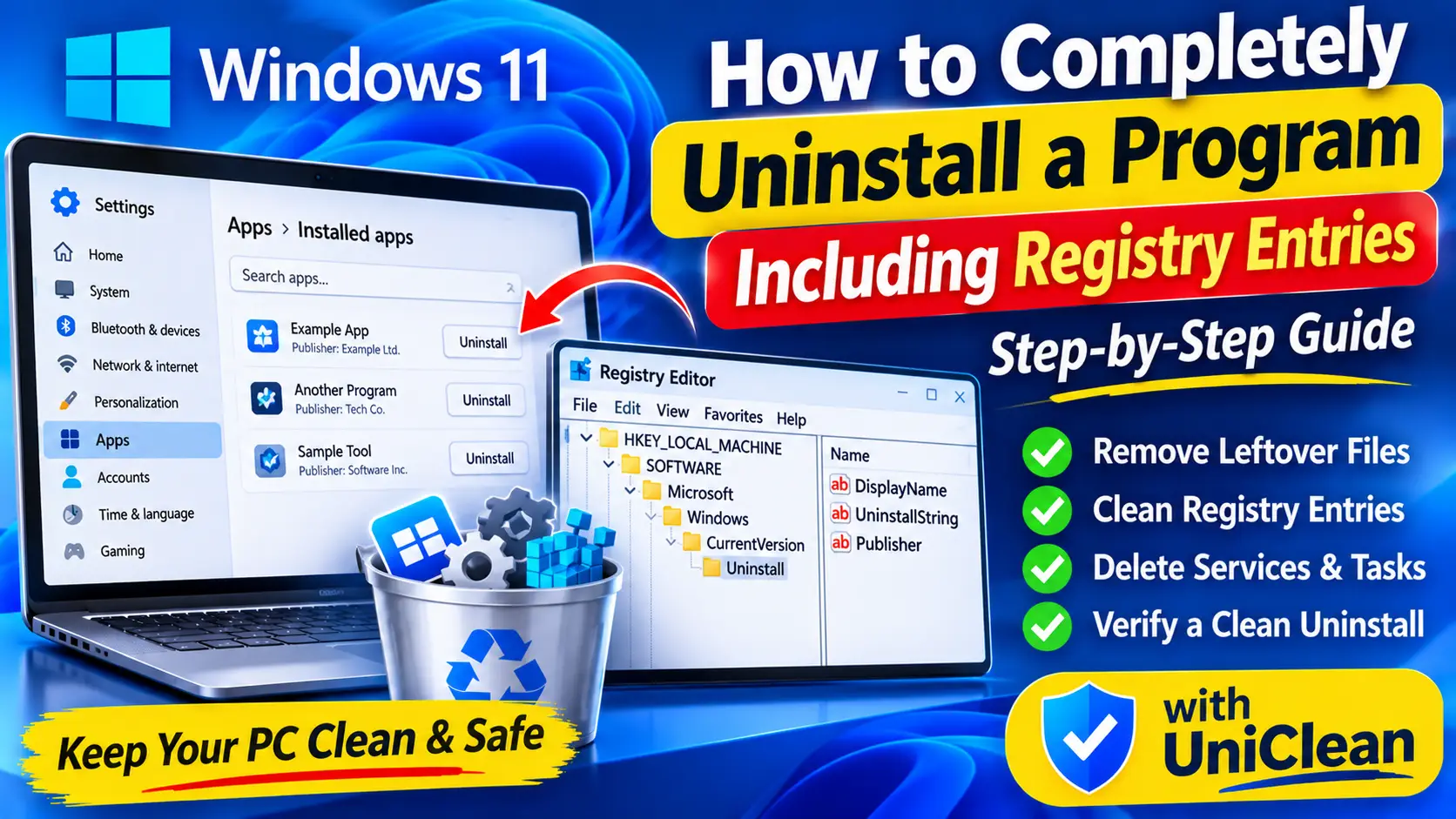
UniClean Complete Guide: Uninstall Programs on Windows
The complete UniClean guide to uninstalling programs on Windows, from the first scan and risk tiers to leftover removal, the Recovery Vault and portable mode.
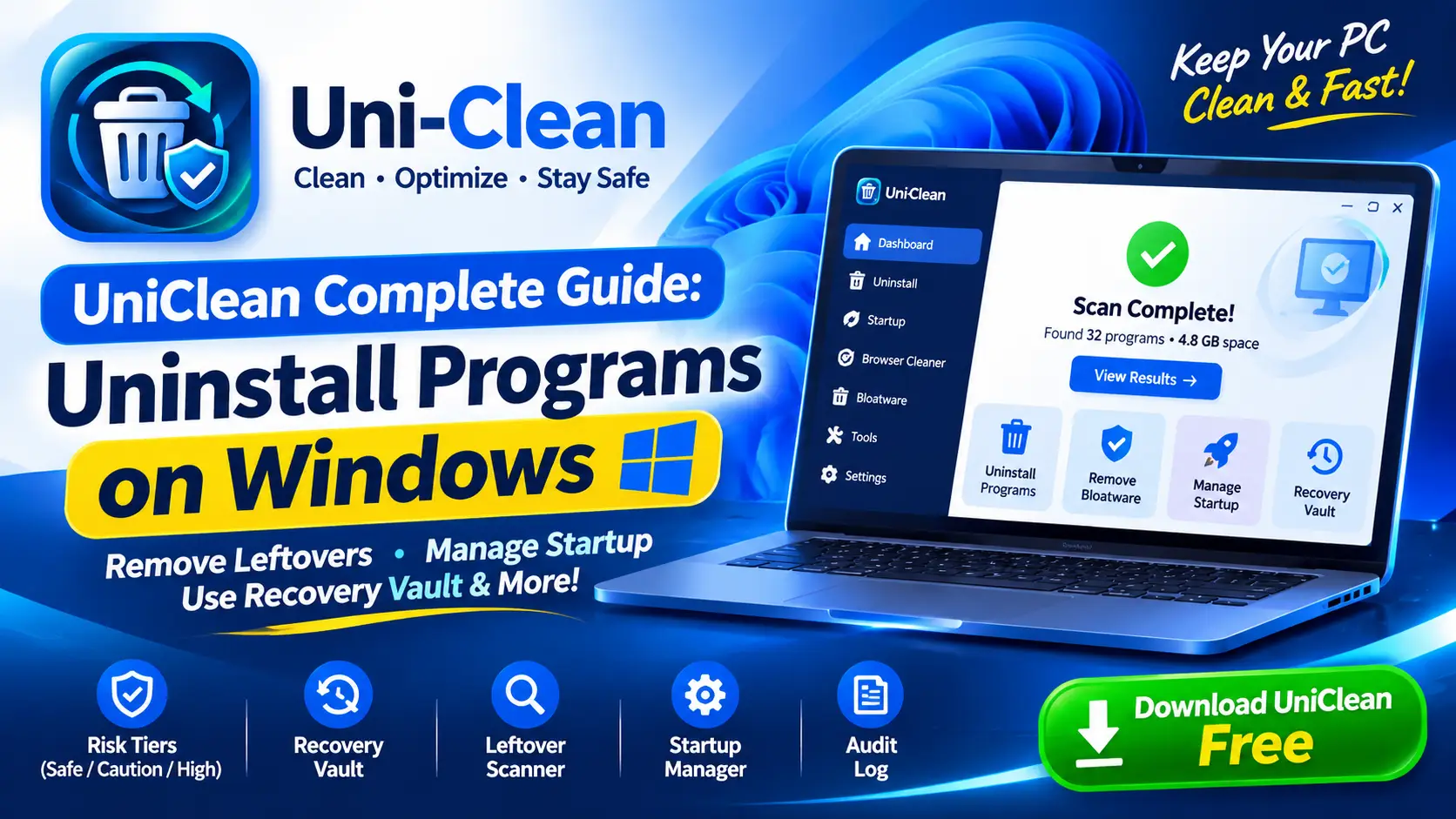
Table of contents
- Why use UniClean instead of Settings
- Step 1: Download and launch UniClean
- Step 2: Scan your installed software
- Step 3: Understand the risk tiers
- Step 4: Uninstall and scan for leftovers
- Step 5: Everything goes into the Recovery Vault
- Step 6: Undo with the Restore Center
- Step 7: Manage startup items
- Step 8: Review the Audit Log
- Using Portable Mode
- Removing bloatware and browser extensions
- Privacy and trust
- A recommended cleanup routine
Windows can uninstall programs, but it relies on each vendor's uninstaller, and those routinely leave folders, registry keys, services and scheduled tasks behind. UniClean was built to uninstall programs on Windows completely while keeping every change reversible. This guide walks through the whole workflow, from the first scan to restoring a program you removed by mistake.
Why use UniClean instead of Settings
The built-in Settings → Apps → Installed apps page is fine for simple apps, but it has three gaps:
- No leftover scan. Whatever the vendor's uninstaller leaves behind stays on your PC.
- No risk guidance. A driver utility looks the same as a game launcher.
- No undo. Your only safety net is a system-wide System Restore point, if one exists.
UniClean fills all three. It is free, works on Windows 11 and 10, collects no telemetry, needs no account and runs fully offline.
Download UniClean free →
Download UniCleanStep 1: Download and launch UniClean
Get UniClean from our download page. If Microsoft Defender SmartScreen shows a warning, that is because UniClean comes from a newer independent publisher still building reputation; our SmartScreen explainer covers why, and the installer shows 0 out of 72 detections on VirusTotal.
Prefer not to install anything? Use Portable Mode and run UniClean straight from a USB drive. Everything below works the same way.
Download UniClean free →
Download UniCleanStep 2: Scan your installed software
On launch, UniClean scans the PC and builds a single list of:
- Desktop programs, with their publisher and install date.
- Windows 11 Store apps, including preinstalled ones.
- OEM bloatware from Dell, HP, Lenovo, ASUS, Acer and MSI, flagged by the Bloatware Scanner.
- Browser extensions in Chrome, Edge, Firefox and Brave.
Search the list or sort it. Sorting by install date is a quick way to find software that appeared recently without your knowledge.
Download UniClean free →
Download UniCleanStep 3: Understand the risk tiers
Every item carries one of three risk tiers:
| Tier | Meaning | What to do |
|---|---|---|
| Safe | Removing it will not affect Windows or other apps | Remove freely |
| Caution | Shared components, OEM utilities, cloud sync | Read the details first |
| High Risk | System-critical, drivers, security software | Remove only if you are sure; vault backup is forced |
For example, a trial game is usually Safe, a manufacturer's touchpad utility is Caution, and a graphics driver or antivirus is High Risk.
Download UniClean free →
Download UniCleanStep 4: Uninstall and scan for leftovers
Select a program and click Uninstall. UniClean runs the vendor's own uninstaller first, because it knows about components a cleanup tool might miss. Follow its prompts as usual.
When the uninstaller finishes, the Leftover Scanner runs a deep scan of:
C:\Program Files,C:\Program Files (x86)andC:\ProgramData- Per-user
AppDatafolders - The registry, including HKLM and HKCU Software keys and the Uninstall keys
- Services and scheduled tasks
Each leftover is listed with its location and risk tier. Untick anything you want to keep, then confirm.
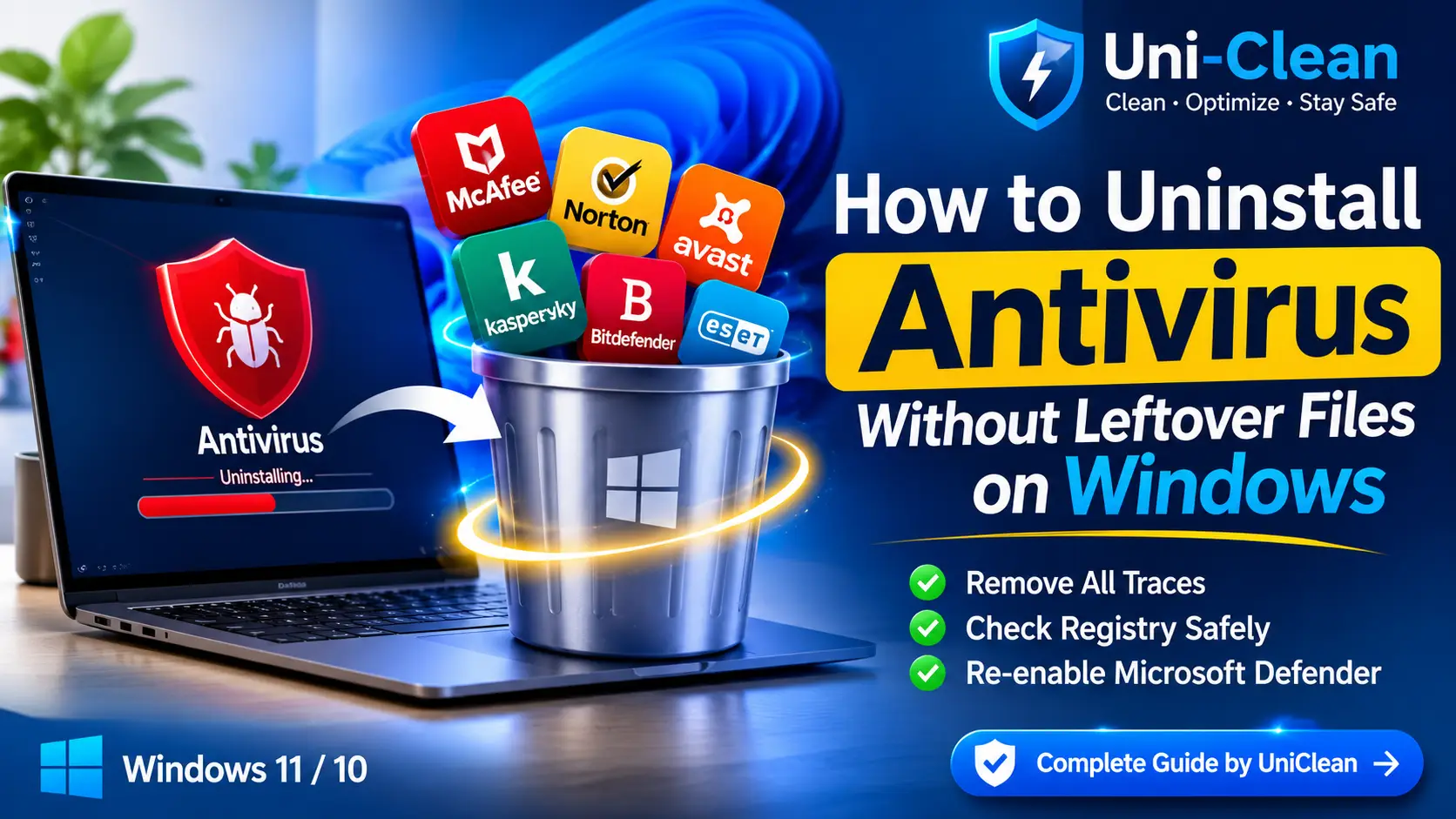
Removing antivirus software
Security suites protect themselves against removal. UniClean's Antivirus Remover handles McAfee, Norton, Avast, AVG, Kaspersky, Bitdefender, ESET and others by stopping protected services or scheduling removal at the next boot, then sweeping drivers, services, folders and registry keys.
Download UniClean free →
Download UniCleanStep 5: Everything goes into the Recovery Vault
Before UniClean deletes a single file or key, it copies it into the Recovery Vault, an AES-256 encrypted store kept locally on your PC. The backup includes:
- Program files and folders
- Registry keys
- Services
- Scheduled tasks
Nothing is uploaded anywhere. Learn more on the Recovery Vault feature page.
Download UniClean free →
Download UniCleanStep 6: Undo with the Restore Center
Removed something you need? Open the Restore Center, find the program by name or date, and click Restore. UniClean puts back the files, registry keys, services and tasks exactly as they were. It works after a restart, and unlike System Restore it affects only that one program, so nothing else on your PC is rolled back.
Download UniClean free →
Download UniCleanStep 7: Manage startup items
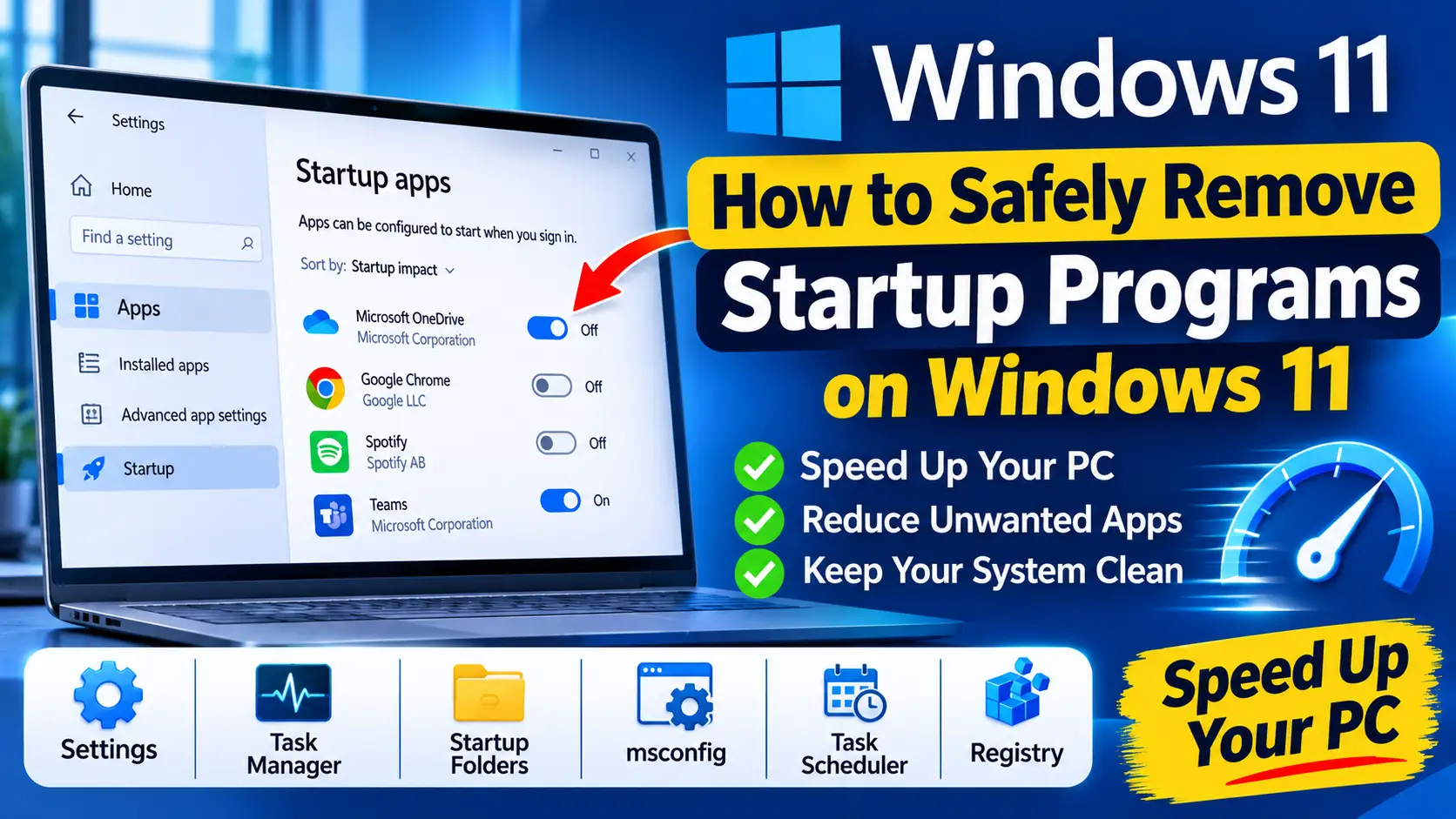
Open the Startup Manager to see startup apps, registry Run keys, services and scheduled tasks in one place. Disable items to stop them launching while keeping them installed, or remove them entirely. Each entry carries a risk tier, so you will not accidentally disable your antivirus or audio driver. Our guide to removing startup programs on Windows 11 explains the manual equivalents.
Download UniClean free →
Download UniCleanStep 8: Review the Audit Log
The Audit Log shows the full installation history of your PC: install date, publisher, install location and who or what installed each program. It is the fastest way to spot software you never installed yourself, including employer or MDM monitoring tools on a personal device. If something looks unfamiliar, check it before removing, especially on a work-managed PC.
Download UniClean free →
Download UniCleanUsing Portable Mode
Portable Mode runs UniClean from a USB drive with no installation. It is ideal for technicians cleaning several PCs, for helping family members, or for removing software from a machine where you would rather not install another tool.
Download UniClean free →
Download UniCleanRemoving bloatware and browser extensions
The same workflow handles preinstalled software. The Bloatware Scanner highlights OEM apps from Dell, HP, Lenovo, ASUS, Acer and MSI as well as Windows 11 Store apps, and each one gets a risk tier. Trial software and promotional apps are typically Safe, while manufacturer utilities that control fan profiles, function keys or firmware updates are usually Caution, because removing them can change how your hardware behaves.
Browser extensions get the same treatment. The Browser Extension Cleaner lists extensions from Chrome, Edge, Firefox and Brave together, so you can remove unwanted ones in bulk instead of opening each browser's settings in turn. Coupon tools, search hijackers and extensions you no longer recognize are good candidates for removal.
Download UniClean free →
Download UniCleanPrivacy and trust
UniClean has no telemetry and no account, and it works fully offline, so your software list, audit history and vault backups never leave your PC. That matters for a tool that, by design, sees everything installed on your system.
Download UniClean free →
Download UniCleanA recommended cleanup routine
- Run a full scan and remove Safe clutter.
- Review Caution items one by one.
- Check the Startup Manager and disable anything you do not need at boot.
- Glance at the Audit Log for unfamiliar software.
- Repeat every few months, or after setting up a new PC.
That is everything you need to uninstall programs on Windows completely, with an undo button for every step. Download UniClean and run your first scan today.
Download UniClean free →
Download UniCleanFrequently asked questions
Yes. UniClean is a free uninstaller and cleaner for Windows 11 and 10 with no account required. See the pricing page for current details.
No. UniClean has no telemetry, needs no account and works fully offline. Your scan results and vault backups stay on your PC.
SmartScreen can warn about software from newer independent publishers until it builds reputation. UniClean's installer shows 0 out of 67 antivirus detections on VirusTotal.
Yes. Vault backups are stored locally and encrypted with AES-256, so you can restore a program from the Restore Center at any time, including after restarting.
Yes. Portable mode runs UniClean from a USB drive with no installation, which is handy for technicians or for cleaning up a friend's PC.
Written by
UniClean Team
The UniClean team builds safe, reversible Windows cleanup tools at UniSoftware. Every guide is tested on clean Windows 11 and Windows 10 installs before publishing. About us