How to Remove McAfee WebAdvisor Completely
McAfee WebAdvisor installs as a separate app and browser extension, so it often survives McAfee removal. Here is how to remove McAfee WebAdvisor completely.
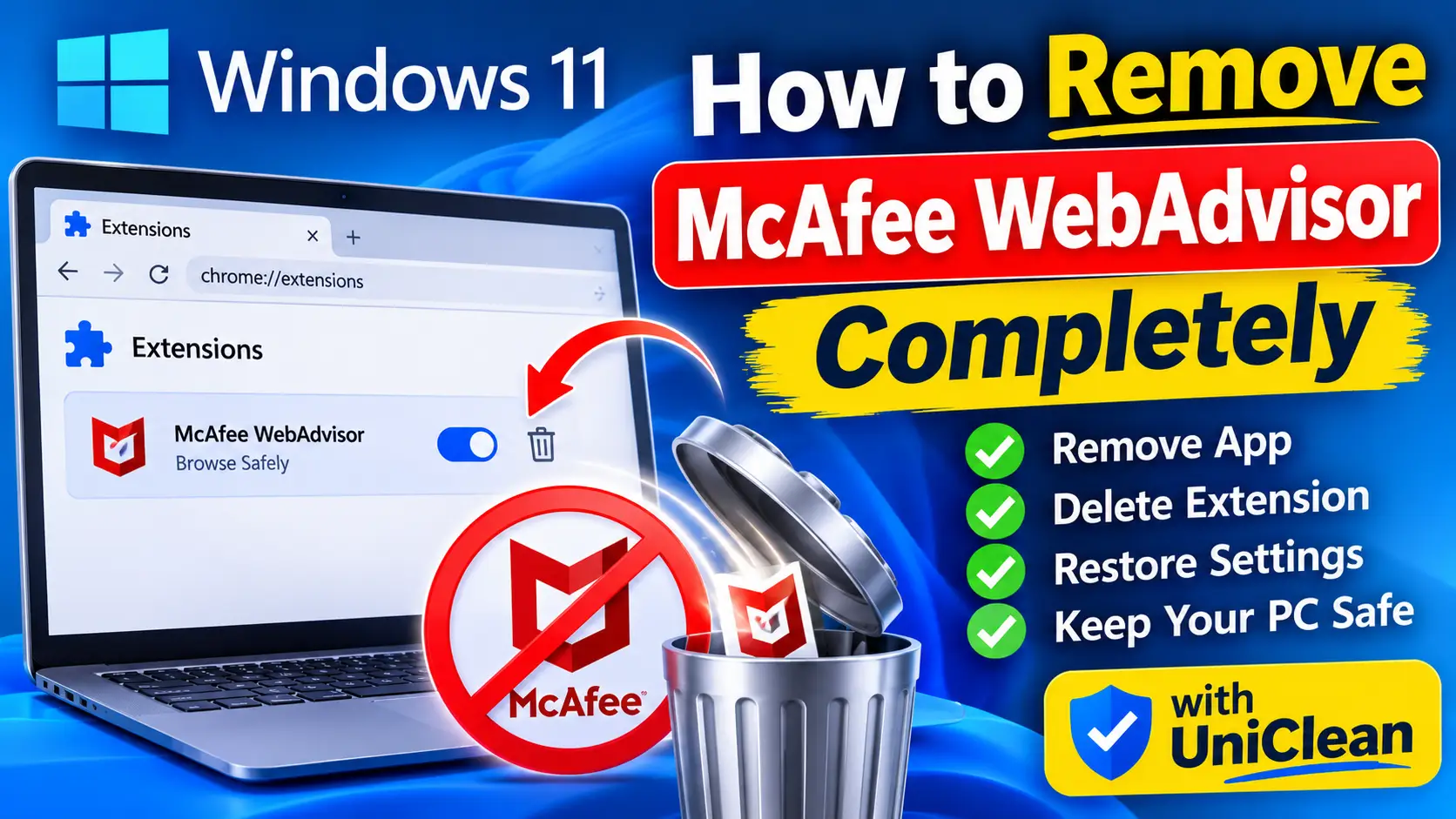
Table of contents
- What McAfee WebAdvisor installs
- Step 1: Close all browsers
- Step 2: Uninstall the WebAdvisor app
- Step 3: Remove the WebAdvisor browser extensions
- Step 4: Restore your search engine and home page
- Step 5: Delete leftover files, tasks and policies
- Step 6: Run MCPR if WebAdvisor keeps coming back
- What protects you instead
- Remove WebAdvisor with UniClean
- Troubleshooting WebAdvisor removal
- Summary
McAfee WebAdvisor is a browser safety add-on that rates websites and warns about risky downloads. It ships on many new Windows laptops and is often bundled with other installers, which is why so many people find it running without remembering installing it. Because it is a separate app with its own browser extensions, it frequently stays behind after McAfee itself is removed. Here is how to remove McAfee WebAdvisor completely.
What McAfee WebAdvisor installs
WebAdvisor has more moving parts than a single extension:
- A desktop app listed as "McAfee WebAdvisor" in Installed apps
- Browser extensions for Chrome, Edge and Firefox
- A background service and update components
- Scheduled tasks that keep it updated
- Optional changes to your search engine through McAfee Secure Search
Removing only the extension lets the app reinstall it. Removing only the app can leave the extension orphaned in your browser. You need to handle both.
Remove WebAdvisor with UniClean →
Download UniCleanStep 1: Close all browsers
Close Chrome, Edge, Firefox, Brave and any other browser. Check the system tray too, since Chrome and Edge can keep running in the background. You can confirm in Task Manager (Ctrl + Shift + Esc) that no browser processes are left.
Remove WebAdvisor with UniClean →
Download UniCleanStep 2: Uninstall the WebAdvisor app
- Press Win + I to open Settings.
- Go to
Settings > Apps > Installed apps. - Search for "WebAdvisor".
- Select the three-dot menu next to McAfee WebAdvisor and choose Uninstall.
- Confirm and wait for it to finish.
If it fails, try Programs and Features: press Win + R, type appwiz.cpl and uninstall from there. You can also try PowerShell or Command Prompt with winget:
winget list McAfee
winget uninstall "McAfee WebAdvisor"
The exact name shown by winget list is what you should pass to winget uninstall.
Remove WebAdvisor with UniClean →
Download UniCleanStep 3: Remove the WebAdvisor browser extensions
Open each browser and remove the extension manually:
| Browser | Extensions page | What to remove |
|---|---|---|
| Chrome | chrome://extensions | McAfee WebAdvisor |
| Edge | edge://extensions | McAfee WebAdvisor |
| Firefox | about:addons | McAfee WebAdvisor |
| Brave | brave://extensions | McAfee WebAdvisor |
If an extension says it is "installed by your administrator" or cannot be removed, a policy is forcing it. That usually means a leftover registry policy; see Step 5.
Remove WebAdvisor with UniClean →
Download UniCleanStep 4: Restore your search engine and home page
WebAdvisor may have offered McAfee Secure Search during installation. In each browser, open settings and check:
- Default search engine (set it back to your choice)
- On startup pages
- New tab page
Remove any McAfee search entries from the list of search engines.
Remove WebAdvisor with UniClean →
Download UniCleanStep 5: Delete leftover files, tasks and policies
Folders
After uninstalling, look for and delete these if they remain:
C:\Program Files\McAfee\WebAdvisor
C:\Program Files (x86)\McAfee\WebAdvisor
C:\Users\YourName\AppData\Local\McAfee\WebAdvisor
Leave other McAfee folders alone if you still have McAfee antivirus installed and want to keep it.
Scheduled tasks
Open Task Scheduler, browse the Library, and delete tasks that mention WebAdvisor.
Forced-install policies
If an extension cannot be removed, check these policy keys in regedit:
HKEY_LOCAL_MACHINE\SOFTWARE\Policies\Google\Chrome\ExtensionInstallForcelist
HKEY_LOCAL_MACHINE\SOFTWARE\Policies\Microsoft\Edge\ExtensionInstallForcelist
On a work or school PC, these policies may be set deliberately by your IT department. Do not remove them on a managed device without permission.
Remove WebAdvisor with UniClean →
Download UniCleanStep 6: Run MCPR if WebAdvisor keeps coming back
If WebAdvisor reappears after a restart, an updater from another McAfee product is likely reinstalling it. Run McAfee's official Consumer Product Removal tool (MCPR) as administrator, then restart. For the full McAfee cleanup process, see our guide on how to completely remove McAfee.
Remove WebAdvisor with UniClean →
Download UniCleanWhat protects you instead
Removing WebAdvisor does not leave you exposed. Windows 11 includes Microsoft Defender SmartScreen, which checks websites in Edge and files you download, and Chrome and Firefox include their own safe browsing protection. Open Windows Security, go to App & browser control, and confirm reputation-based protection is turned on.
Remove WebAdvisor with UniClean →
Download UniCleanRemove WebAdvisor with UniClean
UniClean handles both halves of WebAdvisor in one place. The Browser Extension Cleaner lists extensions across Chrome, Edge, Firefox and Brave so you can bulk-remove WebAdvisor from every profile, and the Antivirus Remover removes the McAfee app, service, tasks and leftover registry keys.
If you are not sure how WebAdvisor got onto your PC, the Audit Log shows the install date and what installed it. Everything UniClean deletes is backed up to the encrypted Recovery Vault first, so it is fully reversible. Download UniClean for free.
Remove WebAdvisor with UniClean →
Download UniCleanTroubleshooting WebAdvisor removal
WebAdvisor is not listed in Installed apps
Sometimes only the browser extension is installed, without the desktop app. In that case, removing the extension from each browser is enough. If the extension keeps coming back, check the scheduled tasks and policy keys described above.
The uninstall fails with an error
Restart the PC, close every browser, and try again from appwiz.cpl. If it still fails, run MCPR, which also cleans up WebAdvisor components in most cases.
The extension shows "Managed by your organization"
That message means a browser policy is forcing the extension. On a personal PC, a leftover McAfee policy entry is the usual cause; remove it carefully as described in Step 5. On a work PC, talk to IT first.
Your search engine keeps switching back
Check every browser profile and the list of search engines in settings, and remove any McAfee entries. Also look for leftover McAfee scheduled tasks, which can reapply settings after an update.
Remove WebAdvisor with UniClean →
Download UniCleanSummary
To remove McAfee WebAdvisor completely, close your browsers, uninstall the app, delete the extension from every browser and profile, reset your search settings, and clear leftover folders, tasks and policies. If it keeps returning, run MCPR. For a broader cleanup of software you did not choose, see our guide to removing hidden apps on Windows 11.
Remove WebAdvisor with UniClean →
Download UniCleanFrequently asked questions
No. Modern browsers already include phishing and malware site protection, and Microsoft Defender SmartScreen covers Edge and downloads in Windows. WebAdvisor is optional.
It is commonly bundled with McAfee trials on new laptops and offered during installs of other software such as plugin or reader updates. It rarely installs without some opt-out checkbox.
Not always. WebAdvisor is a separate product with its own uninstall entry and browser extensions, so remove it individually.
Yes, once the app has been uninstalled and your browsers are closed. It does not contain anything Windows needs.
Written by
UniClean Team
The UniClean team builds safe, reversible Windows cleanup tools at UniSoftware. Every guide is tested on clean Windows 11 and Windows 10 installs before publishing. About us