How-To5 min read
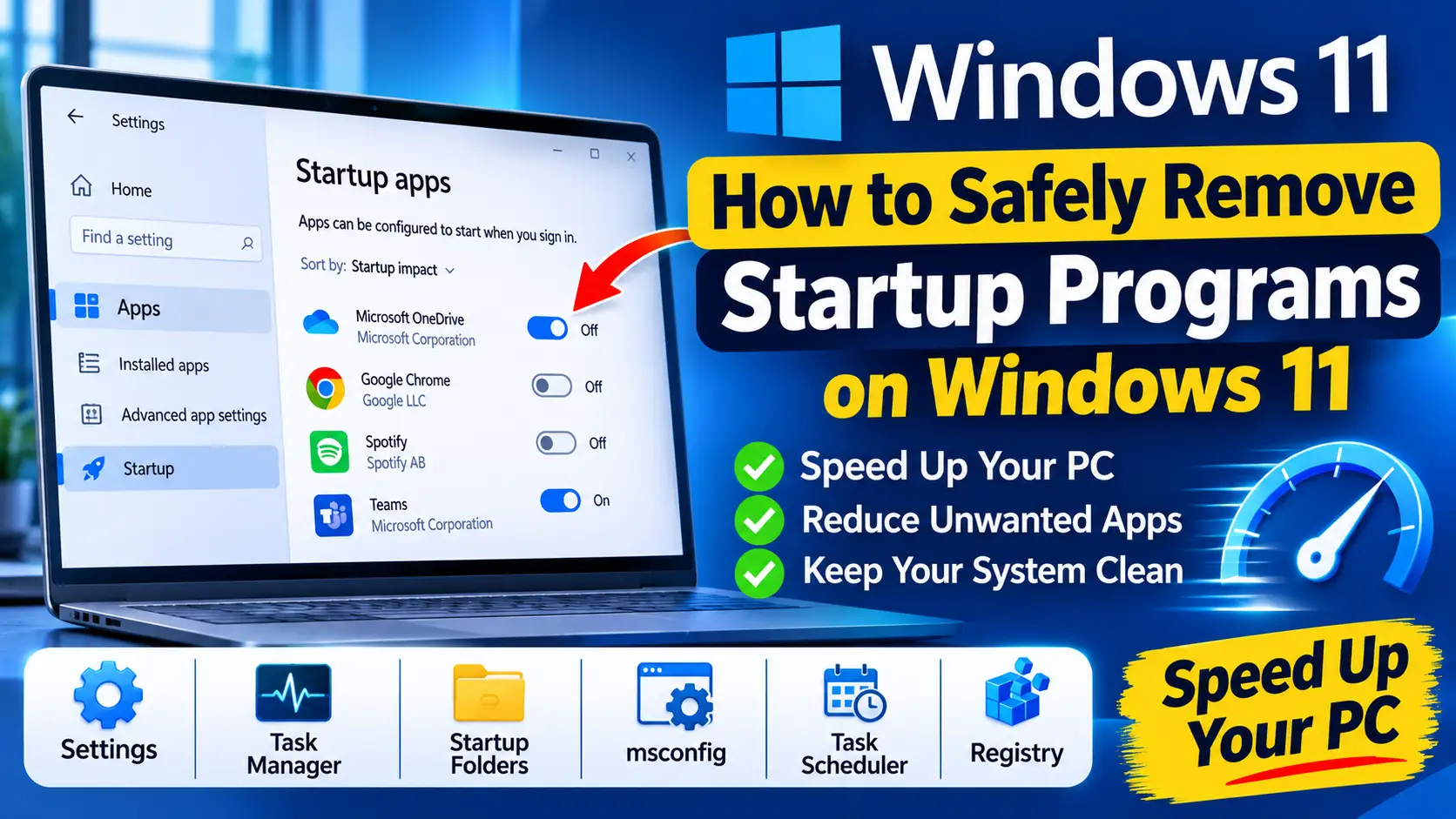
How to Safely Remove Startup Programs on Windows 11
Learn how to remove startup programs on Windows 11 safely with Settings, Task Manager, the Startup folder, services, Task Scheduler and the registry.
Read Guide
New Dell laptops and desktops ship with support tools, update agents and third-party trials. Some are useful for drivers and BIOS updates, while others only take up space and run in the background. This guide shows what is safe to remove and how to do it cleanly.
These are the locations a standard uninstall commonly misses.
| Location | Type | Note |
|---|---|---|
C:\Program Files\Dell\SupportAssistAgent | folder | SupportAssist program files. |
C:\ProgramData\Dell | folder | Logs, caches and settings for Dell tools. |
C:\ProgramData\SupportAssist | folder | SupportAssist data and downloaded packages. |
HKLM\SOFTWARE\Dell | registry | Configuration keys for Dell apps. |
SupportAssistAgent | service | Dell SupportAssist background service. |
Scheduled tasks in Task Scheduler for Dell SupportAssist | task | Update and scan tasks that can run after the app is removed. |
UniClean's Risk Tier for each app — keep anything marked High Risk unless you know you don't need it.
McAfee LiveSafe (trial)
Preinstalled antivirus trial; Microsoft Defender takes over once removed.
Dropbox promotion
Promotional installer or offer; remove if you do not use Dropbox.
Dell Digital Delivery
Delivers software bought with the PC; usually not needed after setup.
Dell Customer Connect
Surveys and marketing messages from Dell.
Dell SupportAssist
Diagnostics plus driver and BIOS updates; keep it unless you use another Dell update tool.
Dell SupportAssist Remediation
Restore and repair component of SupportAssist.
Dell SupportAssist OS Recovery Plugin
Links SupportAssist to the Dell OS recovery environment.
Dell Command Update
Driver, firmware and BIOS updater; keep at least one Dell update tool.
Dell Optimizer
Performance, audio and power tuning; some features depend on it.
Dell Power Manager
Battery charging and thermal profiles.
Waves MaxxAudio Pro
Audio companion app tied to the audio driver; removing it can change sound and microphone behavior.
Realtek Audio Console
Control panel for the Realtek audio driver.
The Windows-only way. It works, but takes longer and has no undo.
Search for Create a restore point, open System Protection and create one before removing anything.
Keep one update tool, such as Dell Command Update or SupportAssist, so you still receive BIOS and driver updates.
Go to Settings > Apps > Installed apps and remove trial software such as McAfee and promotional apps you do not use.
Uninstall Dell apps you do not need, such as Dell Digital Delivery or Dell Customer Connect, one at a time.
If you remove SupportAssist, also uninstall SupportAssist Remediation and the SupportAssist OS Recovery Plugin.
Open Task Manager > Startup apps and Task Scheduler and disable leftover Dell entries you no longer need.
Restart and check that audio, function keys, display brightness and battery charging still work.
Faster, complete, and reversible — everything is backed up to the Recovery Vault first.
Open UniClean and run the Bloatware Scanner. Dell apps and Windows 11 Store apps are detected and listed.
Trials are marked Safe, update tools Caution and driver-linked utilities High Risk, so you know what to leave alone.
Select the apps to remove. UniClean saves them to the encrypted Recovery Vault first.
UniClean uninstalls each app and clears services, scheduled tasks, folders and registry keys left behind.
Restart Windows. If a feature stops working, restore the app from the Restore Center in one click.
Yes, as long as you have another way to get BIOS and driver updates, such as Dell Command Update or the Dell support website.
Keep one update tool and any audio, power or hotkey utilities tied to your drivers. Trials and promotional apps are safe to remove.
No. Uninstalling software does not affect your Dell hardware warranty.
A Dell update tool or scheduled task may have reinstalled it. Check Task Scheduler and your remaining Dell update apps.
Learn how to remove startup programs on Windows 11 safely with Settings, Task Manager, the Startup folder, services, Task Scheduler and the registry.
Free download. No account needed. Windows 11 & 10. Fully local.