How to Find Hidden Programs Installed on Your Windows Laptop
Not everything installed on Windows shows in Installed apps. Learn how to find hidden programs on a laptop using the registry, services, Task Scheduler and PowerShell.
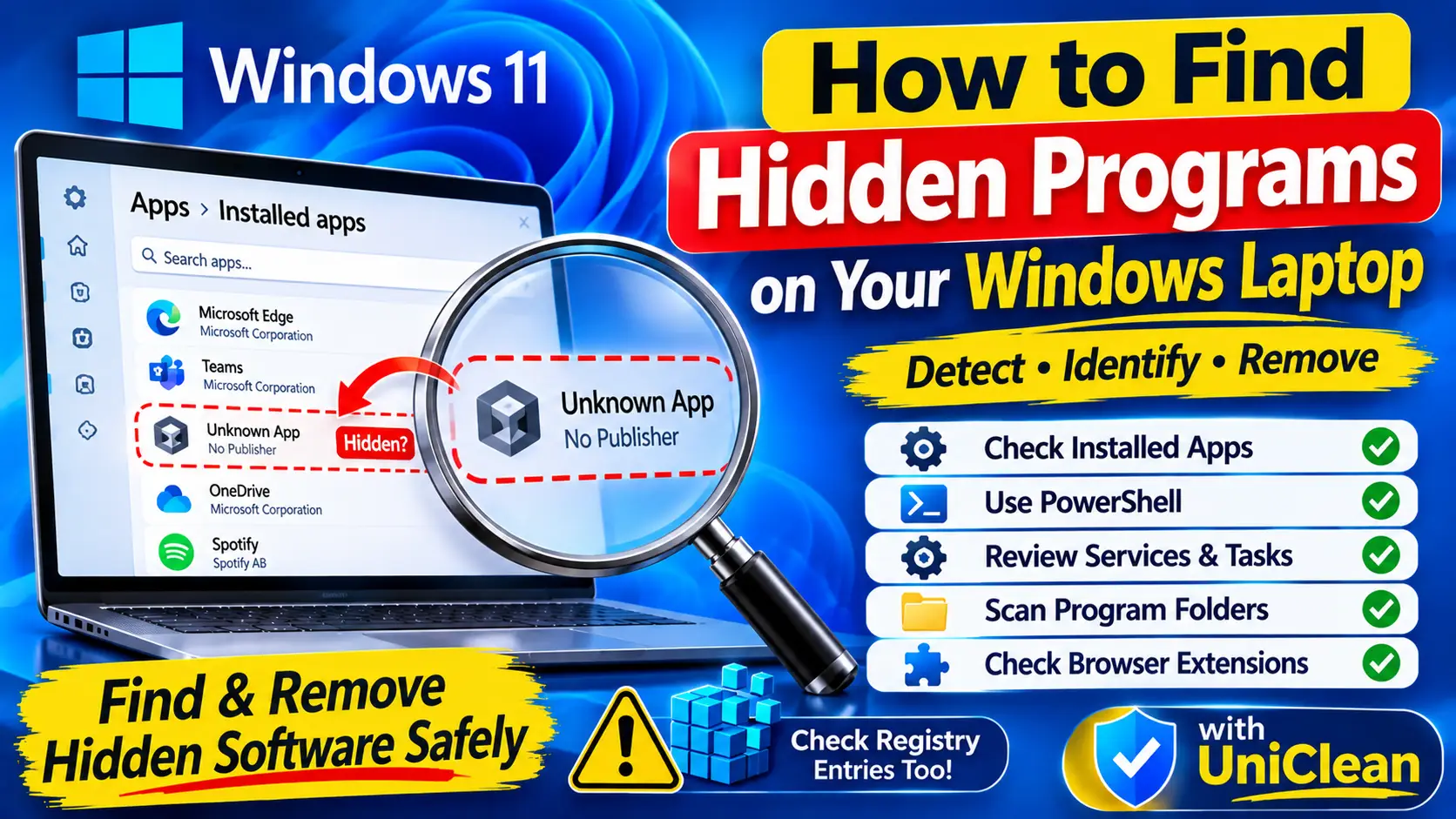
Table of contents
- Why programs can be hidden
- Step 1: Compare the two app lists
- Step 2: Reveal hidden uninstall entries with PowerShell
- Step 3: Check processes and services
- Step 4: Check startup items and scheduled tasks
- Step 5: Look through program folders
- Step 6: Check browser extensions and accounts
- Signs a hidden program deserves a closer look
- The faster way: UniClean's Audit Log
- What to do with what you find
The list in Settings → Apps → Installed apps is not a complete record of what is on your laptop. Some programs hide their uninstall entry, some never register one, and some run quietly as services or scheduled tasks with no visible window. This guide shows you how to find hidden programs on a laptop running Windows 11 or 10, using built-in tools first and then a faster all-in-one view.
Why programs can be hidden
There are a few ordinary reasons software does not appear in the app list:
- System component flag: an installer can set
SystemComponentto1in its uninstall registry key, which hides it from Installed apps. Drivers and runtimes do this a lot. - No uninstall entry: some tools just copy files and create a service or task, without registering with Windows at all.
- Per-user installs: apps installed into
AppDatafor one user only show up for that user. - Portable programs: executables run directly from a folder or USB drive are never "installed".
Most hidden software is harmless, but these same techniques are used by monitoring tools, adware and stalkerware. Finding them is the first step to deciding what to keep.
Find hidden programs with UniClean →
Download UniCleanStep 1: Compare the two app lists
Open Settings → Apps → Installed apps and sort by Install date. Then press Win + R, type appwiz.cpl and press Enter. The Control Panel view shows Publisher and Installed On columns, which make it easier to judge each entry. Note anything installed on a date you cannot explain, or with a publisher you do not recognize.
Find hidden programs with UniClean →
Download UniCleanStep 2: Reveal hidden uninstall entries with PowerShell
Windows stores uninstall information in three registry locations. This read-only PowerShell command lists every entry, including those flagged as hidden:
$paths = @(
  'HKLM:\SOFTWARE\Microsoft\Windows\CurrentVersion\Uninstall\*',
  'HKLM:\SOFTWARE\WOW6432Node\Microsoft\Windows\CurrentVersion\Uninstall\*',
  'HKCU:\SOFTWARE\Microsoft\Windows\CurrentVersion\Uninstall\*'
)
Get-ItemProperty $paths -ErrorAction SilentlyContinue |
  Where-Object { $_.DisplayName } |
  Select-Object DisplayName, Publisher, InstallDate, SystemComponent, InstallLocation |
  Sort-Object InstallDate -Descending |
  Format-Table -AutoSize
Entries with SystemComponent set to 1 are the ones hidden from Installed apps. Many will be Microsoft runtimes or hardware drivers, which is normal.
Store apps are listed separately. Run Get-AppxPackage | Select-Object Name, Publisher to see them; our guide on removing hidden apps on Windows 11 explains which of those you can safely remove.
Find hidden programs with UniClean →
Download UniCleanStep 3: Check processes and services
Press Ctrl + Shift + Esc to open Task Manager and go to the Details tab. Right-click the column header, choose Select columns, and add Command line and Image path name. Anything running from an odd location, such as a random folder in AppData\Roaming or C:\ProgramData, deserves attention.
Next, open services.msc. Sort by Startup Type and read the descriptions of Automatic services you do not recognize. Double-click a service to see its Path to executable, which tells you which program it belongs to.
Find hidden programs with UniClean →
Download UniCleanStep 4: Check startup items and scheduled tasks
Programs that do not appear anywhere else often start themselves through one of these:
- Task Manager → Startup apps tab
- Registry Run keys:
HKCU\Software\Microsoft\Windows\CurrentVersion\RunandHKLM\SOFTWARE\Microsoft\Windows\CurrentVersion\Run - The Startup folder: type
shell:startupin the Run box - Task Scheduler → Task Scheduler Library, including subfolders
In Task Scheduler, select each unfamiliar task and check the Actions tab for the program path and the Triggers tab for when it runs. Tasks that run at logon or every few minutes are common for agents that must stay alive.
For a single view of every auto-start location, Microsoft's free Sysinternals Autoruns tool is excellent. Enable Options → Hide Microsoft Entries to filter out Windows itself.
Find hidden programs with UniClean →
Download UniCleanStep 5: Look through program folders
Finally, browse these folders for names that do not match anything in your app list:
C:\Program FilesandC:\Program Files (x86)C:\ProgramData(hidden by default; type it into the address bar)%LOCALAPPDATA%and%APPDATA%for your user
Leftover folders from old uninstalls are common here and usually harmless. A folder with a recently modified executable and no matching app is more interesting.
Find hidden programs with UniClean →
Download UniCleanStep 6: Check browser extensions and accounts
Not every hidden program lives in Windows itself. Browser extensions can read the pages you visit, and they rarely show up anywhere outside the browser. Open the extensions page in each browser you use (edge://extensions, chrome://extensions, about:addons in Firefox, brave://extensions) and remove anything you did not add yourself. Pay attention to extensions marked as installed by your organization or by policy, since these are pushed by device management.
While you are there, check which accounts are signed in to browser sync, and review Settings → Accounts → Other users for Windows accounts you did not create. A second administrator account is an easy way for someone to install software without you noticing.
Find hidden programs with UniClean →
Download UniCleanSigns a hidden program deserves a closer look
Most of what you find will be harmless. These signs suggest something needs more research:
- No publisher, or a publisher name that does not match the program name
- An executable in a user folder like
AppData\Roamingcombined with a service or scheduled task that keeps it running - An install date when you were not using the PC, or shortly after someone else had access to it
- Tasks that relaunch the program every few minutes, or restore it after you close it
Find hidden programs with UniClean →
Download UniCleanThe faster way: UniClean's Audit Log
Doing all five checks takes time and jumps between six different tools. UniClean's Audit Log shows the full installation history in one list: install date, publisher, install location and who or what installed each program, including entries hidden from Installed apps. Software you never installed yourself, such as tools pushed by an MDM service or a script, stands out immediately.
Each item has a Risk Tier, so drivers and system components are labeled High Risk and are not mistaken for junk. The Startup Manager covers Run keys, services and scheduled tasks in the same app. UniClean is free, offline and sends no telemetry.
Find hidden programs with UniClean →
Download UniCleanWhat to do with what you find
- Drivers, runtimes and Microsoft components: leave them.
- Old software and leftovers: uninstall and clean up.
- Work agents on a company laptop: leave them and ask IT if you have questions.
- Monitoring tools on a personal laptop: follow our guide to detecting employer monitoring software.
- Monitoring software nobody admits to installing: it may be stalkerware. Read our stalkerware guide and think about your safety before removing it.
Find hidden programs with UniClean →
Download UniCleanFrequently asked questions
Programs can mark their uninstall entry as a system component, install without registering an uninstaller at all, or run as portable executables, so Windows has nothing to list.
No. Drivers, runtimes, update services and enterprise agents are often hidden on purpose. Check the publisher and file location before assuming something is malware.
Yes. Autoruns is a free Sysinternals tool from Microsoft. It is safe to view with, but unchecking entries disables them, so only change what you understand.
Check Access work or school for a connected account, then look for agent services and scheduled tasks. Our guide to detecting employer monitoring software covers the full process.
Written by
UniClean Team
The UniClean team builds safe, reversible Windows cleanup tools at UniSoftware. Every guide is tested on clean Windows 11 and Windows 10 installs before publishing. About us