How to Completely Uninstall a Program Including Registry Entries
Standard uninstalls leave files and registry keys behind. Here is how to remove a program completely on Windows, including registry entries, services and tasks.
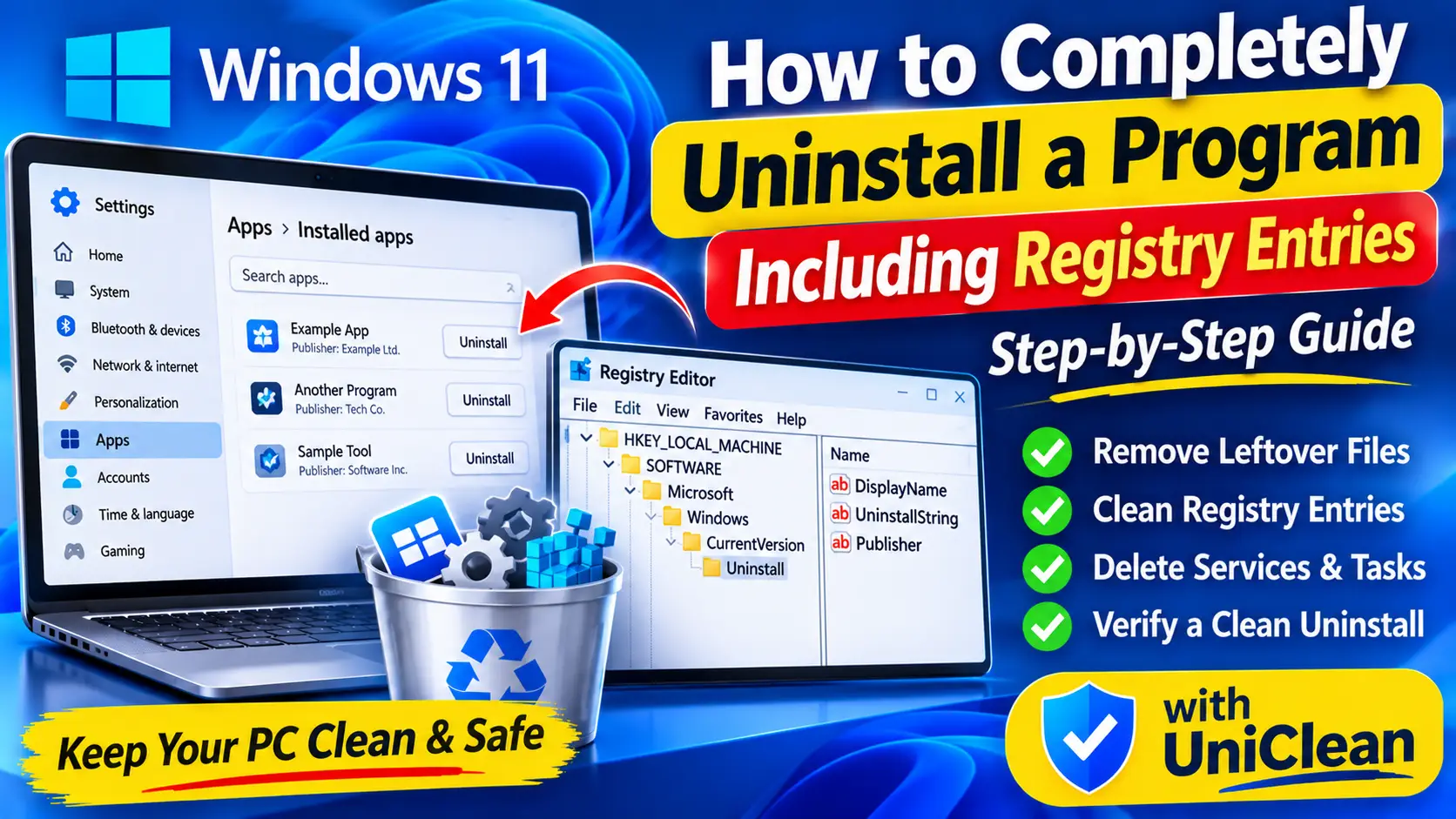
Table of contents
- What a normal uninstall leaves behind
- Step 1: Create a restore point first
- Step 2: Run the standard uninstaller
- Step 3: Remove leftover folders
- Step 4: Remove leftover services and scheduled tasks
- Step 5: Clean registry entries safely
- Step 6: Restart and verify
- When the program will not uninstall at all
- The safer shortcut: UniClean's Leftover Scanner
When you uninstall a program on Windows, the vendor's uninstaller decides what gets removed, and it often leaves plenty behind: folders in AppData, keys in the registry, services that no longer point anywhere, and scheduled tasks that fail silently. This guide shows how to uninstall a program completely on Windows, registry entries included, safely and step by step.
What a normal uninstall leaves behind
A typical program spreads itself across several locations:
| Location | What it contains | Often left behind? |
|---|---|---|
C:\Program Files and C:\Program Files (x86) | Program binaries | Sometimes |
C:\ProgramData | Shared data, licenses, caches | Often |
%AppData% and %LocalAppData% | Per-user settings, caches, logs | Very often |
HKCU\Software and HKLM\SOFTWARE | Settings and configuration | Very often |
| Services | Background updaters, helpers | Sometimes |
| Scheduled tasks | Update checks, telemetry | Often |
Leftovers are not always harmful, but orphaned services and tasks can keep running, stale entries can block a clean reinstall, and caches can quietly use gigabytes.
Remove leftovers safely with UniClean →
Download UniCleanStep 1: Create a restore point first
Before any manual cleanup, give yourself a way back.
- Press Win and search for Create a restore point.
- Select your system drive and click Create. If the button is greyed out, click Configure and turn on system protection first.
- Give it a name like "Before removing AppName".
Remove leftovers safely with UniClean →
Download UniCleanStep 2: Run the standard uninstaller
Use the program's own uninstaller first. It knows about drivers and components a manual cleanup might miss.
- Settings: open Settings → Apps → Installed apps, click the three dots next to the app, and choose Uninstall.
- Control Panel: press Win + R, run
appwiz.cpl, select the program and click Uninstall. - winget: from Terminal, run the following.
winget list
winget uninstall --id Vendor.AppName
Restart if the uninstaller asks you to.
Remove leftovers safely with UniClean →
Download UniCleanStep 3: Remove leftover folders
Open File Explorer and check each of these for folders named after the program or its publisher:
C:\Program Files
C:\Program Files (x86)
C:\ProgramData
%AppData%
%LocalAppData%
C:\ProgramData and AppData are hidden by default; paste the paths into the address bar to open them. Delete only folders you are sure belong to the removed program. Publisher folders can be shared by several products, so look inside before deleting.
Remove leftovers safely with UniClean →
Download UniCleanStep 4: Remove leftover services and scheduled tasks
Services
- Run
services.mscand look for services named after the program or publisher. - Open one and check Path to executable. If that file no longer exists, the service is orphaned.
- Note the Service name (not the display name), then from an elevated Terminal run:
sc.exe delete ServiceName
Scheduled tasks
Run taskschd.msc, browse the Task Scheduler Library, and delete tasks from the removed software. Avoid the Microsoft folder.
Remove leftovers safely with UniClean →
Download UniCleanStep 5: Clean registry entries safely
This is the step that makes the uninstall truly complete, and the one that needs the most care.
- Press Win + R, type
regedit, and approve the prompt. - Check the program's own settings keys:
HKEY_CURRENT_USER\Software\VendorName
HKEY_LOCAL_MACHINE\SOFTWARE\VendorName
HKEY_LOCAL_MACHINE\SOFTWARE\WOW6432Node\VendorName
- Check the uninstall entries. If the app still appears in Installed apps after uninstalling, its entry is likely stuck here:
HKEY_LOCAL_MACHINE\SOFTWARE\Microsoft\Windows\CurrentVersion\Uninstall
HKEY_LOCAL_MACHINE\SOFTWARE\WOW6432Node\Microsoft\Windows\CurrentVersion\Uninstall
HKEY_CURRENT_USER\Software\Microsoft\Windows\CurrentVersion\Uninstall
Subkeys here are often GUIDs. Click each one and read the DisplayName value to identify the program.
- Check the Run keys under
HKEY_CURRENT_USER\Software\Microsoft\Windows\CurrentVersion\Runand the HKLM equivalent for startup entries pointing to removed files. - Export, then delete, each key that clearly belongs to the removed program.
Avoid using Find to delete every match for a word. Common words appear in unrelated keys, and shared components such as Visual C++ runtimes must stay.
Remove leftovers safely with UniClean →
Download UniCleanStep 6: Restart and verify
Restart Windows, then confirm the program is gone from Installed apps and that nothing else broke. If something did, double-click the exported .reg file to restore the key, or use the restore point you created in Step 1.
Remove leftovers safely with UniClean →
Download UniCleanWhen the program will not uninstall at all
Sometimes Step 2 fails: the uninstaller is missing, crashes, or reports an error. Try these in order before going straight to the registry:
- Repair, then uninstall. In
appwiz.cpl, some programs offer Change or Repair. Repairing restores the missing uninstaller files, after which a normal uninstall often works. - Use the vendor's removal tool. Many vendors publish dedicated cleanup tools for exactly this case, especially antivirus and driver suites.
- Reinstall over the top. Installing the same version again often restores a damaged uninstaller. Once the install finishes, uninstall it straight away from Settings.
- Use the original MSI. For MSI-based programs, running the original installer package and choosing Remove can succeed where the Settings entry fails.
- Try Safe Mode. If files are locked because the program is running, restart into Safe Mode and uninstall from there.
Only when all of these fail should you remove the program by deleting its folders, services, tasks and Uninstall key by hand, exporting every key first. Work in the same order as the steps above: stop and delete services, remove scheduled tasks, delete folders, and finish with the registry. Doing the registry last means you can still read the program's own keys for clues, such as its install path or service names, while you clean up everything else.
Remove leftovers safely with UniClean →
Download UniCleanThe safer shortcut: UniClean's Leftover Scanner
Doing all of this by hand takes time and carries real risk. UniClean automates it. After running the vendor's uninstaller, its leftover scanner deep-scans Program Files, ProgramData, AppData, the registry (HKLM and HKCU Software plus Uninstall keys), services and scheduled tasks. Each finding gets a risk tier, so you can remove Safe items freely and review Caution ones.
Before deleting anything, UniClean backs it up into an AES-256 encrypted Recovery Vault. If a removal causes a problem, the Restore Center puts back that one program's files and registry keys with a click, without rolling back the whole system the way System Restore does. Security software is especially stubborn, so for antivirus see our guide to uninstalling antivirus without leftover files.
Whether you clean up manually or let a tool do it, the principle is the same: back up first, remove only what clearly belongs to the program, and verify afterward. Download UniClean to make every uninstall complete and reversible.
Remove leftovers safely with UniClean →
Download UniCleanFrequently asked questions
Uninstallers often keep settings and license data deliberately so a reinstall feels seamless, and some simply do not track everything the program created while running.
Deleting keys that clearly belong to the removed program is generally safe if you export them first. Never delete shared keys or anything you cannot identify.
Under the Uninstall key in HKLM, its WOW6432Node equivalent for 32-bit apps, and the HKCU Uninstall key for per-user installs.
Rarely in any noticeable way. The bigger issues are wasted disk space in leftover folders, orphaned services and tasks, and stale entries that block reinstalls.
Written by
UniClean Team
The UniClean team builds safe, reversible Windows cleanup tools at UniSoftware. Every guide is tested on clean Windows 11 and Windows 10 installs before publishing. About us