Remove ASUS Bloatware — Safe Removal Guide
A safe, step-by-step guide to removing ASUS bloatware on Windows 11: what Armoury Crate, MyASUS and other preloaded apps do, and which ones you should keep.
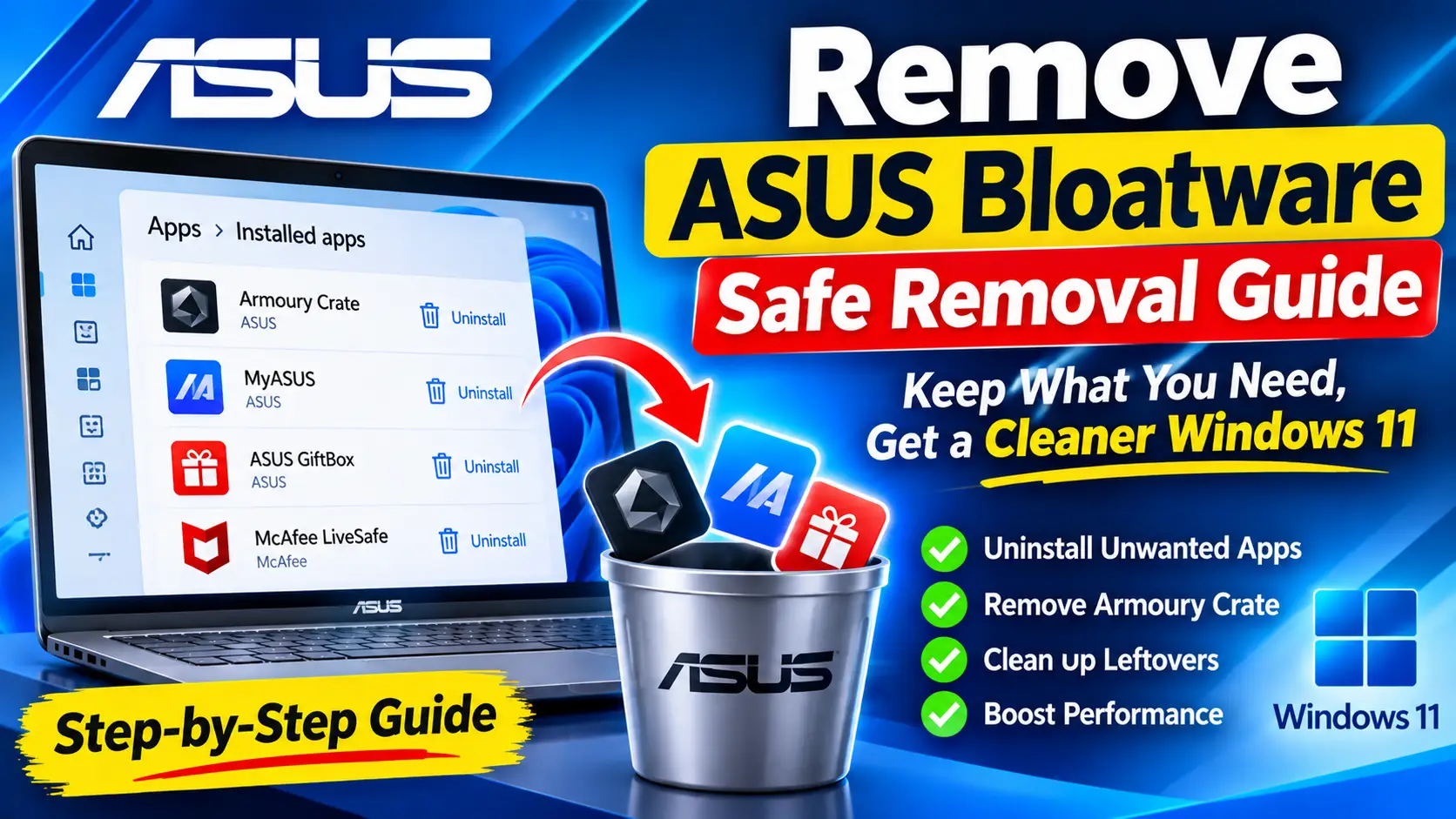
Table of contents
- What counts as ASUS bloatware
- Before you start: make a safety net
- Step 1: Uninstall simple ASUS apps from Settings
- Step 2: Remove Armoury Crate the right way
- Step 3: Decide what to do with MyASUS
- Step 4: Clean up services, tasks and leftovers
- The faster way: remove ASUS bloatware with UniClean
- Which ASUS apps should you keep?
ASUS laptops and desktops ship with a stack of preinstalled utilities, some genuinely useful and some that only slow down startup. The tricky part is that a few ASUS apps are tied to drivers for function keys, fans and battery charging, so removing everything blindly can break hardware features. This guide shows you how to remove ASUS bloatware on Windows 11 safely, which apps to keep, and how to clean up what a normal uninstall leaves behind.
What counts as ASUS bloatware
Not every ASUS app is bloat. A useful way to sort them is by what breaks if you remove them. Promotional apps and trials break nothing. Control panels like Armoury Crate or MyASUS remove convenience features. Driver-level components can break hotkeys, fan profiles or battery charge limits.
| App | What it does | Risk |
|---|---|---|
| McAfee LiveSafe / trial antivirus | Third-party trial, duplicates Windows Security | Safe |
| ASUS GiftBox | Promotional app store links | Safe |
| Third-party shortcuts (Booking.com, Dropbox promo, games) | Partner promotions | Safe |
| MyASUS | Support, warranty, battery care, driver updates | Caution |
| Armoury Crate (gaming models) | RGB lighting, fan and performance modes | Caution |
| ScreenXpert / ScreenPad | Controls the secondary screen on Duo models | Caution |
| ASUS Aura Sync / Lighting Service | RGB lighting service | Caution |
| ASUS System Control Interface | Driver behind hotkeys and power features | High Risk |
| ASUS Precision Touchpad / audio drivers | Hardware drivers | High Risk |
As a rule, remove the green items freely, think about whether you use the yellow ones, and leave the red ones alone. UniClean's Risk Tiers apply the same labels automatically when you scan.
Remove ASUS bloatware with UniClean →
Download UniCleanBefore you start: make a safety net
Create a restore point before removing anything from an OEM machine. Press Win + R, type sysdm.cpl, open the System Protection tab, select your system drive and click Create. If protection is turned off, click Configure and enable it first.
It also helps to note your current settings in MyASUS or Armoury Crate, such as the battery charge limit or fan mode, in case you want to recreate them later.
Remove ASUS bloatware with UniClean →
Download UniCleanStep 1: Uninstall simple ASUS apps from Settings
Open Settings → Apps → Installed apps and type ASUS in the search box. Also scroll the full list for partner apps, since trials like McAfee are not branded ASUS.
For each app you want gone, click the three-dot menu and choose Uninstall. The classic Control Panel view at appwiz.cpl shows the same desktop programs plus their publisher and install date, which helps when names are vague.
If you prefer the command line, winget can list and remove most of them:
winget list asus
winget uninstall --name "MyASUS"
For McAfee trials specifically, a standard uninstall often leaves components behind. See our guide on how to completely remove McAfee if it reappears.
Remove ASUS bloatware with UniClean →
Download UniCleanStep 2: Remove Armoury Crate the right way
Armoury Crate is the most common complaint on ASUS gaming laptops and ROG or TUF motherboards. It installs several services, a lighting service and sometimes drivers. Uninstalling it from Settings removes the app but frequently leaves the services and scheduled tasks running.
ASUS publishes an official Armoury Crate Uninstall Tool on its support site. Download it from the ASUS website, extract it, run the tool as administrator, and restart when prompted. It removes Armoury Crate, Aura lighting components and related services together.
Stop it from coming back
On many ASUS motherboards and some laptops, the BIOS or UEFI includes an option that downloads and installs Armoury Crate automatically after Windows setup. Enter the BIOS (usually Del or F2 at boot), look under Tool or Advanced for the Armoury Crate download setting, and disable it. Otherwise the app reinstalls itself on the next driver update.
Remove ASUS bloatware with UniClean →
Download UniCleanStep 3: Decide what to do with MyASUS
MyASUS bundles warranty info, diagnostics, driver updates and battery care. The battery charge limit option, which caps charging at around 80 percent to extend battery life, is the feature most people miss after removing it.
If you want to keep battery care but reduce background activity, leave MyASUS installed and disable its startup entry instead. Open Task Manager with Ctrl + Shift + Esc, go to Startup apps, and disable anything ASUS you do not need at login. Our startup programs guide explains how to judge each entry.
Remove ASUS bloatware with UniClean →
Download UniCleanStep 4: Clean up services, tasks and leftovers
Even after a clean uninstall, ASUS software can leave behind:
- Folders in
C:\Program Files\ASUS,C:\ProgramData\ASUSand%LOCALAPPDATA%\ASUS - Services such as the ASUS optimization or lighting services in
services.msc - Scheduled tasks under an ASUS folder in Task Scheduler
- Registry keys under
HKLM\SOFTWARE\ASUSandHKCU\Software\ASUS
Check services.msc first. If a service belongs to an app you have removed, set its startup type to Disabled rather than deleting it immediately. Then open Task Scheduler and look for an ASUS folder in the Task Scheduler Library.
Remove ASUS bloatware with UniClean →
Download UniCleanThe faster way: remove ASUS bloatware with UniClean
Doing all of this by hand works, but it is slow and easy to get wrong. UniClean's Bloatware Scanner detects ASUS preloaded software alongside Windows 11 built-in apps and labels each one Safe, Caution or High Risk, so driver components like ASUS System Control Interface are clearly flagged.
- Download and open UniClean from our download page. Portable Mode runs it without installing anything.
- Open the Bloatware Scanner and review the ASUS results by risk tier.
- Select the apps to remove. UniClean runs the uninstaller, then sweeps leftover folders, services, scheduled tasks and registry keys.
- Everything removed is backed up first to the encrypted Recovery Vault, so you can restore an app in one click if a feature stops working, even after a restart.
UniClean works offline, needs no account and sends no telemetry.
Remove ASUS bloatware with UniClean →
Download UniCleanWhich ASUS apps should you keep?
For most people, a sensible ASUS setup after cleanup looks like this: keep drivers and ASUS System Control Interface, keep MyASUS if you use battery care, remove Armoury Crate unless you actively use its fan or RGB features, and remove all trials and partner promotions. If you are cleaning a new PC more broadly, our Windows 11 bloatware list covers the Microsoft apps that ship alongside the ASUS ones.
Remove ASUS bloatware with UniClean →
Download UniCleanFrequently asked questions
Yes, MyASUS is optional. You lose its battery charge limit setting, warranty info and driver update helper, but Windows and your hardware keep working normally.
Usually no. ASUS System Control Interface is a driver component that function keys, fan modes and battery features rely on, so treat it as high risk and keep it unless you have a specific reason.
On many ASUS motherboards and laptops a BIOS option downloads Armoury Crate automatically. Disable the Armoury Crate download setting in the BIOS or UEFI before uninstalling.
Yes. Most are available from the Microsoft Store or the ASUS support site, and if you removed them with UniClean you can restore them from the Recovery Vault in one click.
Written by
UniClean Team
The UniClean team builds safe, reversible Windows cleanup tools at UniSoftware. Every guide is tested on clean Windows 11 and Windows 10 installs before publishing. About us