Find and Remove Hidden Apps on Windows 11
Some apps never show an Uninstall button. Learn how to find and remove hidden apps on Windows 11, from provisioned Store apps to hidden desktop programs and services.
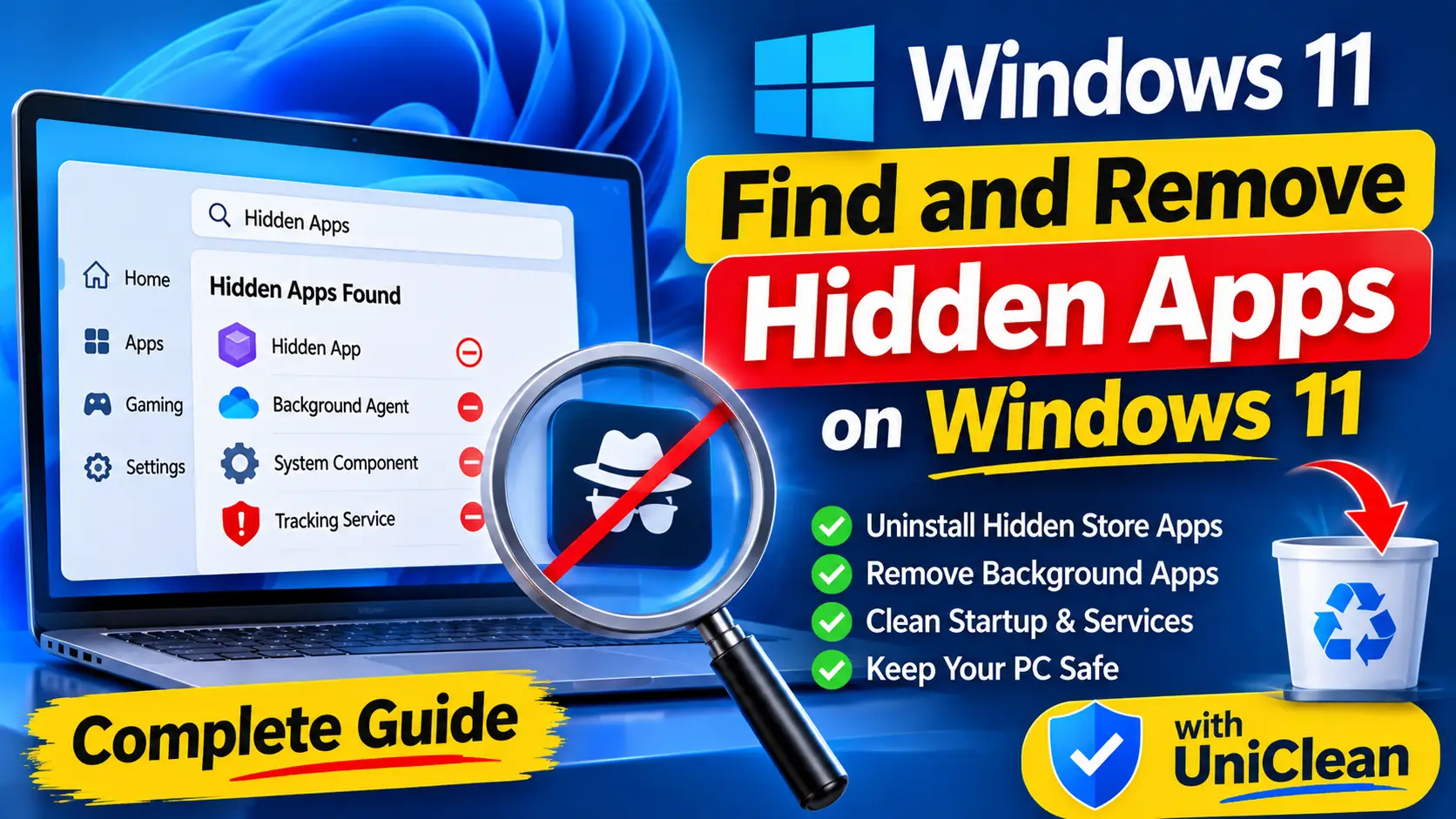
Table of contents
- Types of hidden apps on Windows 11
- Step 1: Find hidden Store apps
- Step 2: Remove hidden Store apps
- Step 3: Find hidden desktop programs
- Step 4: Uninstall hidden desktop programs
- Step 5: Remove orphaned services and scheduled tasks
- Hidden apps on OEM laptops
- Check browser extensions too
- Remove hidden apps with UniClean
- If something breaks
Windows 11 has plenty of apps that do not show up where you expect. Some Store apps are installed but never pinned, some are provisioned for every new user, and some desktop programs hide their uninstall entry entirely. This guide shows you how to find and remove hidden apps on Windows 11 safely, and how to tell the difference between clutter and components you need.
Types of hidden apps on Windows 11
"Hidden" covers several different situations, and each one is removed differently:
| Type | Where it hides | How to remove | Typical risk |
|---|---|---|---|
| Unpinned Store apps | Installed but not pinned to Start | Settings or Remove-AppxPackage | Safe |
| Provisioned Store apps | Installed for every new user account | Remove-AppxProvisionedPackage | Caution |
| Hidden desktop programs | Uninstall entry flagged SystemComponent | Program's own uninstaller or msiexec | Caution |
| Background agents | Services and scheduled tasks only | Uninstaller, then services and tasks cleanup | Caution |
| Frameworks and runtimes | Store frameworks, Visual C++ runtimes | Leave them installed | High Risk |
If you have not yet worked out what is hidden on your PC, start with our guide on how to find hidden programs on a laptop, which covers discovery in detail.
Remove hidden apps with UniClean →
Download UniCleanStep 1: Find hidden Store apps
Open Terminal as administrator (right-click Start, then Terminal (Admin)) and list all Store apps for your account:
Get-AppxPackage | Where-Object { -not $_.IsFramework } |
  Select-Object Name, Publisher, InstallLocation |
  Sort-Object Name
Filtering out frameworks hides the packages you should never remove. Then check what is provisioned for new users:
Get-AppxProvisionedPackage -Online | Select-Object DisplayName, PackageName
Compare these lists against our Windows 11 bloatware list, which rates each built-in app as Safe, Caution or High Risk.
Remove hidden apps with UniClean →
Download UniCleanStep 2: Remove hidden Store apps
Remove an app for your account by name:
Get-AppxPackage Microsoft.BingNews | Remove-AppxPackage
To stop it being installed for new user accounts as well, remove the provisioned package:
Get-AppxProvisionedPackage -Online |
  Where-Object { $_.DisplayName -eq "Microsoft.BingNews" } |
  Remove-AppxProvisionedPackage -Online
Use exact names rather than broad wildcards so you only remove what you intend. Never remove Microsoft Store, Windows Security, App Installer or framework packages such as VCLibs, .NET Native or UI Xaml.
Remove hidden apps with UniClean →
Download UniCleanStep 3: Find hidden desktop programs
Desktop programs can hide from Installed apps by setting SystemComponent to 1 in their uninstall key. List them with this read-only command:
Get-ItemProperty 'HKLM:\SOFTWARE\Microsoft\Windows\CurrentVersion\Uninstall\*',
  'HKLM:\SOFTWARE\WOW6432Node\Microsoft\Windows\CurrentVersion\Uninstall\*' |
  Where-Object { $_.SystemComponent -eq 1 -and $_.DisplayName } |
  Select-Object DisplayName, Publisher, UninstallString
You can also run winget list and compare its output with Installed apps. Any program that appears in one list but not the other is worth a closer look.
Remove hidden apps with UniClean →
Download UniCleanStep 4: Uninstall hidden desktop programs
Most hidden entries are Visual C++ redistributables, drivers or components of a larger program. Remove a hidden program only when you know what it belongs to, and prefer its parent product's uninstaller.
For a standalone hidden program, use the UninstallString from the previous step. For MSI-based programs it looks like MsiExec.exe /X followed by a product code in braces; run that from an administrator Terminal. Many programs can also be removed with winget:
winget uninstall --name "Program Name"
Remove hidden apps with UniClean →
Download UniCleanStep 5: Remove orphaned services and scheduled tasks
Hidden apps often leave background pieces behind after uninstall. Open services.msc, find services whose Path to executable points to a folder that no longer exists, and set them to Disabled. In Task Scheduler, select tasks whose Actions run a missing program and click Delete.
If you are dealing with an agent you think might be monitoring software, check who installed it first. On a company laptop, leave it in place and talk to IT. On a personal device, our guide on detecting employer monitoring software explains how to proceed.
Remove hidden apps with UniClean →
Download UniCleanHidden apps on OEM laptops
Laptops from Dell, HP, Lenovo, ASUS, Acer and MSI often carry extra hidden components alongside their visible utilities. Typical examples are update services, telemetry or analytics agents, and helper processes for control panels like MyASUS, Lenovo Vantage, HP Support Assistant or Dell SupportAssist. These usually appear only as services or scheduled tasks, and they can remain after the main app is uninstalled.
The safe approach is to remove the visible parent app first using its normal uninstaller, then check services.msc and Task Scheduler for anything with the manufacturer's name that no longer has a purpose. Be careful with entries that mention drivers, hotkeys, power management or the touchpad, since those are often needed for hardware to work properly.
Remove hidden apps with UniClean →
Download UniCleanCheck browser extensions too
Hidden apps are not limited to Windows. Browser extensions can be installed by other software or pushed by policy, and they do not show up in any Windows app list. Open the extensions page in each browser you use, such as edge://extensions or chrome://extensions, and remove anything you did not add. An extension marked as managed by your organization was installed by policy; on a company device, leave it and ask IT.
Remove hidden apps with UniClean →
Download UniCleanRemove hidden apps with UniClean
UniClean shows hidden Store apps and desktop programs in one place. The Audit Log lists every program with its install date, publisher, install location and who or what installed it, including entries hidden from Installed apps. Each item carries a Risk Tier, so frameworks, drivers and security components are flagged High Risk before you touch them.
When you remove something, UniClean runs the uninstaller and then sweeps leftover files, registry keys, services and scheduled tasks. Everything is backed up to the encrypted Recovery Vault first, so you can restore it in one click, even after a restart. UniClean is free, works offline and sends no telemetry.
Remove hidden apps with UniClean →
Download UniCleanIf something breaks
If an app or feature stops working after removing a hidden app, reinstall it from the Microsoft Store or the vendor's site, or roll back with your restore point. Our guide on recovering an accidentally uninstalled program walks through every recovery option.
Remove hidden apps with UniClean →
Download UniCleanFrequently asked questions
Windows blocks uninstalling some inbox apps from Settings, and some programs are installed for all users or by policy. PowerShell or the program's own uninstaller usually works where Settings does not.
Built-in Store apps can return after a major Windows feature update, especially if the provisioned package was not removed. Removing the provisioned package reduces this.
Often not. Many are drivers, Visual C++ runtimes or framework packages that other programs depend on. Remove one only if you know which program it belongs to.
Reinstall the app from the Microsoft Store or vendor, or roll back with your restore point. If you used UniClean, restore the item from the Recovery Vault in one click.
Written by
UniClean Team
The UniClean team builds safe, reversible Windows cleanup tools at UniSoftware. Every guide is tested on clean Windows 11 and Windows 10 installs before publishing. About us