Is My Employer Monitoring My Personal Laptop? Here's How to Find Out
Wondering if your employer is monitoring your personal laptop? Learn what a work account, MDM enrollment or company agent can actually see, and how to check in minutes.
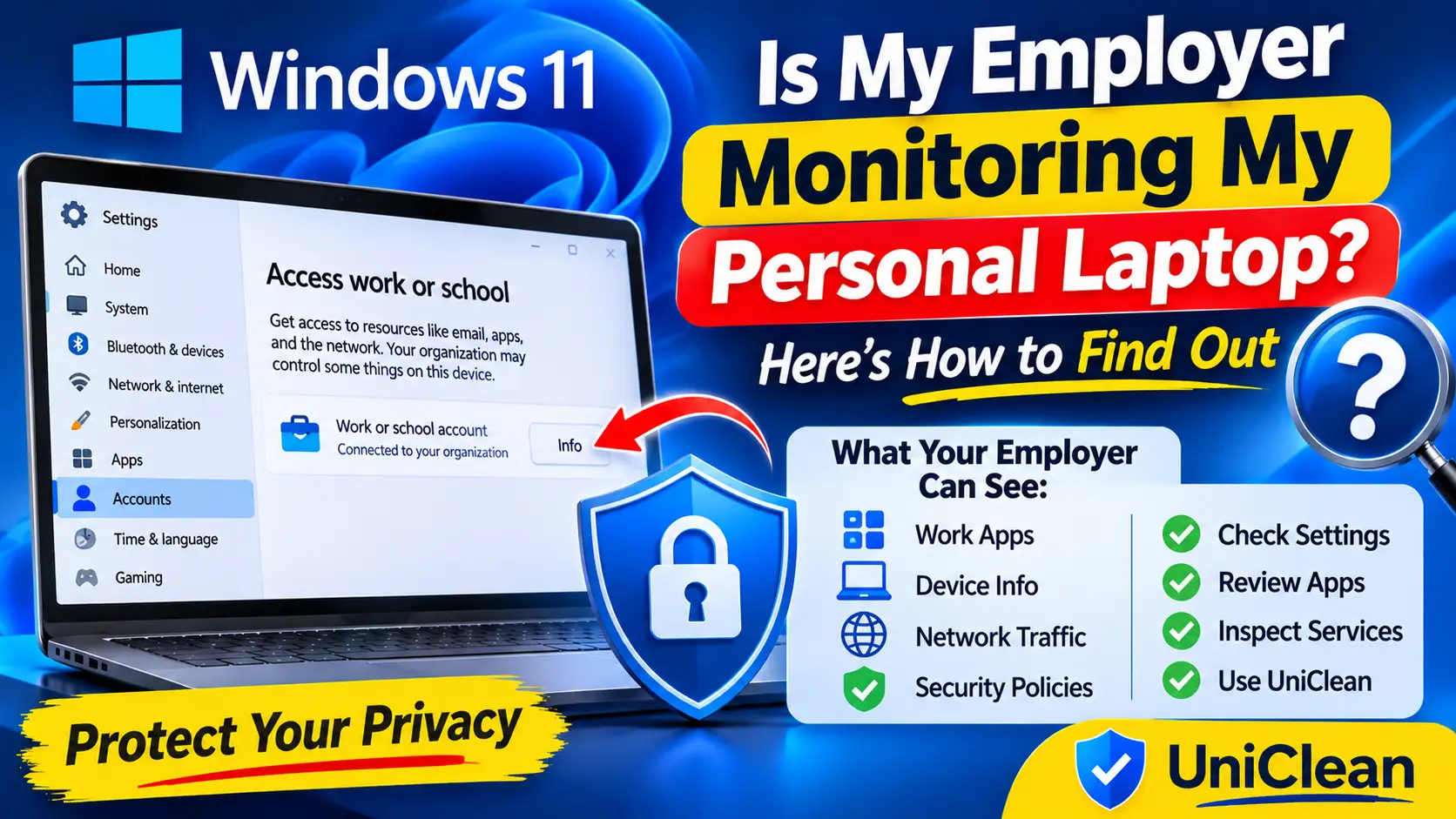
Table of contents
Bring-your-own-device setups are common, and many people sign into work email or Teams on their own laptop without thinking about what that connects. The honest answer to "is my employer monitoring my personal laptop" is: usually not in the way people fear, but it depends entirely on what you agreed to during setup. This article explains what different kinds of work connections can see, and how to find out exactly which one you have.
The short answer
Your employer can only see what software on your laptop reports back to them. That access comes from one of four places:
- A work or school account you connected to Windows, possibly with device management enrollment.
- Company software you installed, such as a VPN client, security agent or monitoring tool.
- Network-level inspection through a company VPN, proxy or root certificate.
- Work apps like Outlook, Teams or OneDrive signed in with your work account.
If none of these exist on your laptop, your employer has no technical way to monitor it. If one does, the level of visibility varies a lot.
Audit your laptop with UniClean →
Download UniCleanWhat each type of connection can see
| Connection | Typical visibility for your employer | Can see personal files or browsing? |
|---|---|---|
| Work apps only (Outlook, Teams, OneDrive) | Activity inside those apps and work data | No |
| Work account registered with Windows | Device name, OS version, sign-in events | Generally no |
| Full MDM enrollment (for example Microsoft Intune) | Installed apps, compliance, policies; can deploy software and scripts | Not by default, but can deploy tools that could |
| Company VPN or proxy | Traffic sent through the VPN or proxy | Traffic that passes through it |
| Corporate root certificate plus proxy | Can inspect HTTPS traffic through the proxy | Yes, for routed traffic |
| Monitoring agent (Teramind, ActivTrak, Hubstaff, InterGuard, Veriato) | App and site usage, activity time, sometimes screenshots or keystrokes | Potentially yes |
| EDR agent (CrowdStrike, SentinelOne) | Processes, file and network events for security | Records activity metadata |
Microsoft's own documentation for Intune states that on personal devices, administrators cannot see things like your personal email, browsing history, photos or files. However, MDM can deploy additional software, and that software may have broader access. That is why checking what is actually installed matters more than the enrollment itself.
Audit your laptop with UniClean →
Download UniCleanHow to check in five minutes
1. Access work or school
Open Settings → Accounts → Access work or school. If a work or school account is listed, click it. If you see an Info button, the device is enrolled in management, and the Info page lists the management service and the policies applied. If you only see Disconnect, the account is registered but probably not fully managed.
You can confirm with dsregcmd /status in Terminal. WorkplaceJoined : YES usually means registered, while AzureAdJoined : YES on a personal laptop is unusual and means the organization effectively controls sign-in.
2. Installed apps
Go to Settings → Apps → Installed apps, sort by install date, and look for anything installed around when you set up work access. Monitoring vendors such as Teramind, ActivTrak, Hubstaff, InterGuard and Veriato, or EDR agents like CrowdStrike Falcon and SentinelOne, are the important ones to spot.
3. Services and startup
Check the Task Manager Startup apps tab and services.msc for agents you do not recognize. For a full walkthrough of services, tasks, certificates and proxies, follow our guide on how to detect employer monitoring software.
4. Network settings
Look at Settings → Network and internet → Proxy and VPN, and open certmgr.msc to check Trusted Root Certification Authorities for a certificate issued by your company.
Audit your laptop with UniClean →
Download UniCleanUse the Audit Log to see what was installed and by whom
UniClean's Audit Log shows the full installation history of your PC: install date, publisher, install location and who or what installed each program. On a personal laptop, that makes it easy to spot software that arrived through MDM or a script rather than from you. Each item is labeled with a Risk Tier, so you can tell a security agent or driver from ordinary software.
UniClean is free, runs offline and sends no telemetry, which matters when the whole point is privacy. You can download it here.
Audit your laptop with UniClean →
Download UniCleanWhat your employer might reasonably require
It is worth seeing this from the employer's side too. If you access company email, customer data or internal systems from your laptop, your employer has a legitimate interest in keeping that data secure. Requirements like a PIN, disk encryption, up-to-date Windows or an approved security agent are common conditions of access.
What is less reasonable on a personal device is broad productivity tracking, screenshots or keystroke logging. If you find tools like that, ask HR or IT whether they were intentional and what data they collect. Many regions, including the EU under GDPR, require employers to be transparent about monitoring and proportionate in what they collect. Laws vary, so check your contract and local rules.
Audit your laptop with UniClean →
Download UniCleanHow to take back control of a personal laptop
If you decide you no longer want work connections on your own laptop:
- Tell IT first, and ask how to access work resources without enrolling the device, for example through a browser.
- Disconnect the work account from Access work or school. On a managed device, this unenrolls it and usually removes the policies.
- Uninstall any company-installed agents that remain, then clean leftovers.
- Check
dsregcmd /statusagain to confirm the device is no longer joined or registered.
Our step-by-step guide on removing company software from a personal laptop covers each of these in detail, including agents with tamper protection that need an uninstall token from IT.
Audit your laptop with UniClean →
Download UniCleanBottom line
Most personal laptops with work email set up are not being monitored in any invasive way. But an enrolled device can receive software you never chose, so the only way to know for sure is to check: Access work or school, installed apps, services and network settings. Keep work and personal use separate where you can, and when in doubt, ask your employer directly what they collect.
Audit your laptop with UniClean →
Download UniCleanFrequently asked questions
Only if something on the laptop gives them that access, such as an enrolled MDM policy, a company VPN or proxy, a root certificate or a monitoring agent. Signing into Outlook or Teams alone does not expose your browsing history.
Using the Teams or Outlook apps lets your employer manage the work data inside those apps, but it does not by itself install a monitoring agent or let them see your other activity.
If the device is fully enrolled in MDM, an administrator may be able to issue a wipe or reset. With app-level protection only, they can usually remove just the work data.
Disconnect the work account from Access work or school, remove any company-installed agents, and use work apps in a browser or on a separate device. Tell IT first so you don't lose access to anything you need.
Written by
UniClean Team
The UniClean team builds safe, reversible Windows cleanup tools at UniSoftware. Every guide is tested on clean Windows 11 and Windows 10 installs before publishing. About us