How to Uninstall Antivirus Without Leftover Files on Windows
Antivirus suites leave drivers, services and registry keys behind. Learn how to uninstall antivirus without leftover files on Windows 11 and 10, safely.
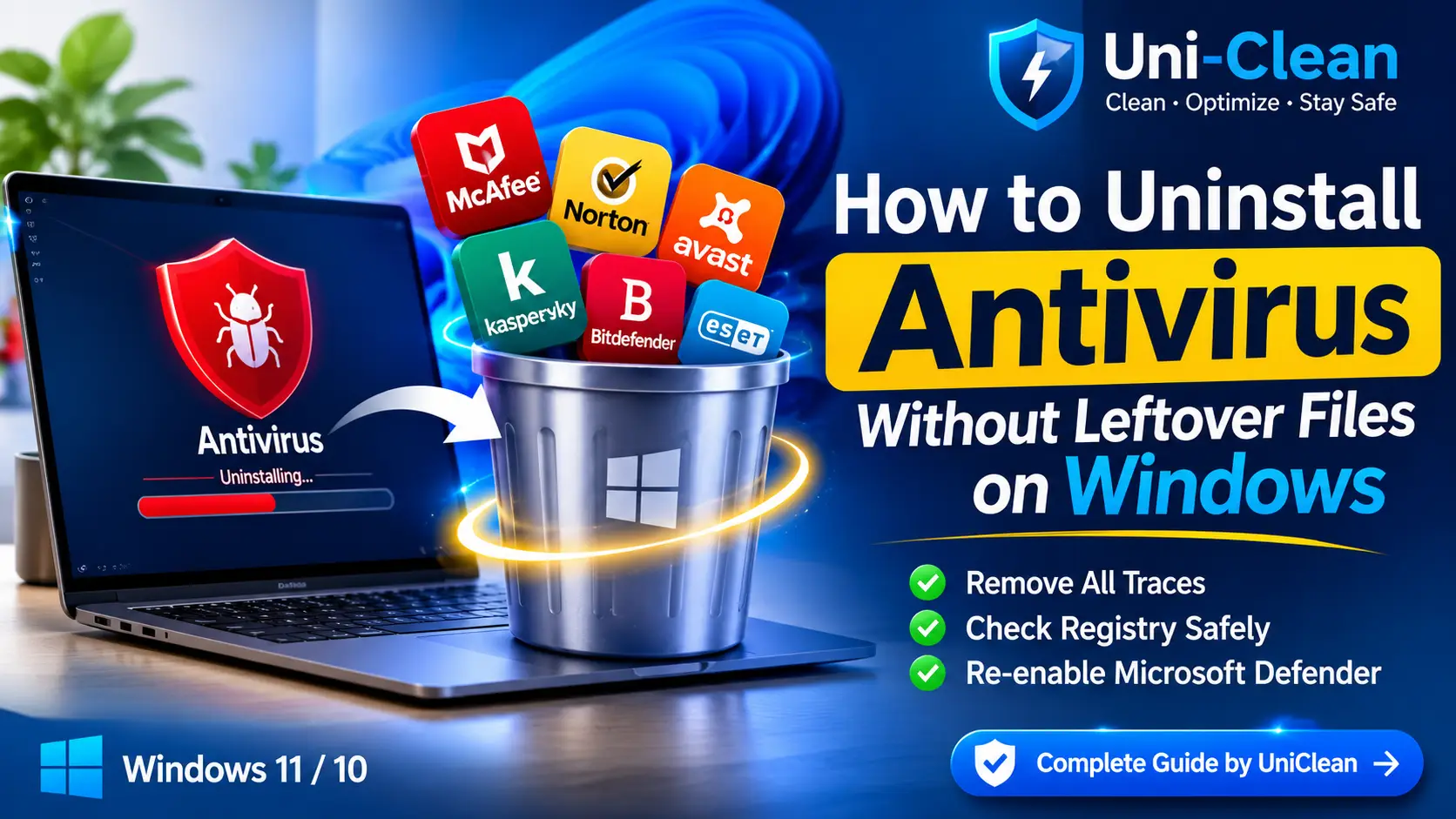
Table of contents
Uninstalling antivirus software is not like removing a normal app. Security suites embed themselves deep in Windows so malware cannot disable them, and that same design means a standard uninstall often leaves drivers, services, scheduled tasks and registry keys behind. This article explains why that happens and how to uninstall antivirus without leftover files, whichever brand you are using.
Why antivirus software leaves leftovers
A typical desktop app lives in one folder under Program Files. An antivirus suite spreads across the system:
| Component | Where it lives | Why it lingers |
|---|---|---|
| Kernel drivers | C:\Windows\System32\drivers | Loaded at boot, locked while running |
| Services | services.msc | Self-protected, restart when stopped |
| Scheduled tasks | Task Scheduler Library | Updaters often outlive the main app |
| Data and quarantine | C:\ProgramData | Kept "in case you reinstall" |
| User settings | %appdata% and %localappdata% | Per-user, missed by system uninstallers |
| Registry keys | HKLM\SOFTWARE and Uninstall keys | Orphaned when an uninstall fails midway |
| Browser extensions | Each browser profile | Installed separately from the app |
| Security center entry | Windows Security | Can remain registered after removal |
Self-protection is the main obstacle. Products such as McAfee, Norton, Avast, AVG, Kaspersky, Bitdefender and ESET block changes to their own files and services, so an uninstall that runs while protection is active can stop partway.
Clean up antivirus leftovers with UniClean →
Download UniCleanThe general process that works for every brand
Regardless of vendor, a clean removal follows the same order.
1. Turn off self-protection
Most suites have a setting called Self-Defense, Tamper Protection or similar. Turning it off lets the uninstaller stop services cleanly. If you cannot open the app, skip this; the vendor tool handles it.
2. Uninstall from Windows
Open Settings > Apps > Installed apps, or press Win + R and run appwiz.cpl. Uninstall the main suite first, restart, then remove the companion apps: VPNs, password managers, secure browsers, driver updaters and web advisors.
3. Run the vendor's official removal tool
Every major vendor publishes a cleanup utility for exactly this situation:
| Vendor | Official removal tool |
|---|---|
| McAfee | McAfee Consumer Product Removal tool (MCPR) |
| Norton | Norton Remove and Reinstall tool (use Remove Only) |
| Avast | Avast Clear (avastclear.exe) |
| AVG | AVG Clear |
| Kaspersky | kavremover |
| Bitdefender | Bitdefender Uninstall Tool |
| ESET | ESET Uninstaller |
Download these only from the vendor's own support website. Some, like Avast Clear and the ESET Uninstaller, are designed to run in Safe Mode.
4. Check for leftovers manually
After the removal tool and a restart, check:
- Folders in
C:\Program Files,C:\Program Files (x86),C:\ProgramDataand your AppData folders - Services in
services.msc - Scheduled tasks in Task Scheduler
- Browser extensions in each browser and profile
- Registry keys under the vendor's name
5. Re-enable Microsoft Defender
Open Windows Security, go to Virus & threat protection, and confirm Microsoft Defender Antivirus is active with Real-time protection turned on. Check Firewall & network protection too, since many suites replace the Windows firewall. Then check for updates and run a Quick scan.
Clean up antivirus leftovers with UniClean →
Download UniCleanHow to check the registry safely
The registry is where most leftovers hide and where mistakes are most costly.
Useful places to look in regedit:
HKEY_LOCAL_MACHINE\SOFTWARE\VendorName
HKEY_LOCAL_MACHINE\SOFTWARE\WOW6432Node\VendorName
HKEY_CURRENT_USER\Software\VendorName
HKEY_LOCAL_MACHINE\SOFTWARE\Microsoft\Windows\CurrentVersion\Uninstall
Rules of thumb:
- Delete only keys clearly named after the antivirus vendor or product.
- Never delete driver or service keys under
HKLM\SYSTEM\CurrentControlSet\Servicesunless you are sure the driver is no longer installed; a wrong deletion here can stop Windows from booting. - Avoid "registry cleaner" tools that delete hundreds of keys at once without showing you what they are.
For a deeper walkthrough, see our guide on how to uninstall a program completely, including the registry.
Clean up antivirus leftovers with UniClean →
Download UniCleanCommon problems and fixes
"Another antivirus is installed" when installing a new one
A leftover service or security center registration is still present. Run the old vendor's removal tool again, restart, and retry.
Windows Security says the old antivirus is "off"
The product's security center registration was not removed. The vendor's removal tool usually clears it. A Windows restart after cleanup is required.
Files cannot be deleted
A driver or service is still running. Restart into Safe Mode (hold Shift while clicking Restart, then Troubleshoot, Advanced options, Startup Settings) and try again, or rerun the vendor tool.
The antivirus comes back
A scheduled updater task survived, or the software is being reinstalled from an OEM recovery image or bundled installer. Remove the task and decline antivirus offers in future installers.
Clean up antivirus leftovers with UniClean →
Download UniCleanBrand-specific guides
If you know which product you are removing, these step-by-step guides cover each one in detail:
- How to completely remove McAfee
- How to completely uninstall Norton
- Complete Avast removal guide
- How to remove Kaspersky completely
Clean up antivirus leftovers with UniClean →
Download UniCleanUninstall antivirus without leftovers using UniClean
UniClean was built for the cases where normal uninstallers fall short. Its Antivirus Remover supports McAfee, Norton, Avast, AVG, Kaspersky, Bitdefender, ESET and others. It handles self-protection by stopping protected services or scheduling removal at the next boot, then sweeps drivers, services, tasks, folders and registry keys.
What makes it safer than deleting things by hand:
- Risk tiers label every item Safe, Caution or High Risk, and drivers and security components are always High Risk.
- Recovery Vault backs up every file, key, service and task to an AES-256 encrypted local vault before deletion, with one-click restore that works after a restart.
- Leftover Scanner checks Program Files, ProgramData, AppData, registry, services and tasks after any uninstall.
UniClean is free, has no telemetry, needs no account and works offline. Download UniClean, or see how it compares with other uninstallers.
Clean up antivirus leftovers with UniClean →
Download UniCleanSummary
To uninstall antivirus without leftover files, turn off self-protection, uninstall the suite and its companion apps, run the vendor's official removal tool, check folders, services, tasks, extensions and registry keys, and finally confirm Microsoft Defender is protecting you. Do it in that order and you will avoid nearly every leftover problem.
Clean up antivirus leftovers with UniClean →
Download UniCleanFrequently asked questions
Antivirus suites install kernel drivers, protected services and data folders that the standard uninstaller sometimes cannot remove while they are running, so they are left for a restart or simply forgotten.
They are rarely harmful, but orphaned drivers and services can slow startup, cause errors, confuse Windows Security, and block a new antivirus from installing.
It is the most reliable way to finish an incomplete uninstall. Major vendors publish one, such as MCPR for McAfee, the Norton Remove and Reinstall tool, Avast Clear and kavremover.
Usually, yes. Microsoft Defender Antivirus re-enables itself when no third-party antivirus is registered, but always confirm in Windows Security.
Written by
UniClean Team
The UniClean team builds safe, reversible Windows cleanup tools at UniSoftware. Every guide is tested on clean Windows 11 and Windows 10 installs before publishing. About us