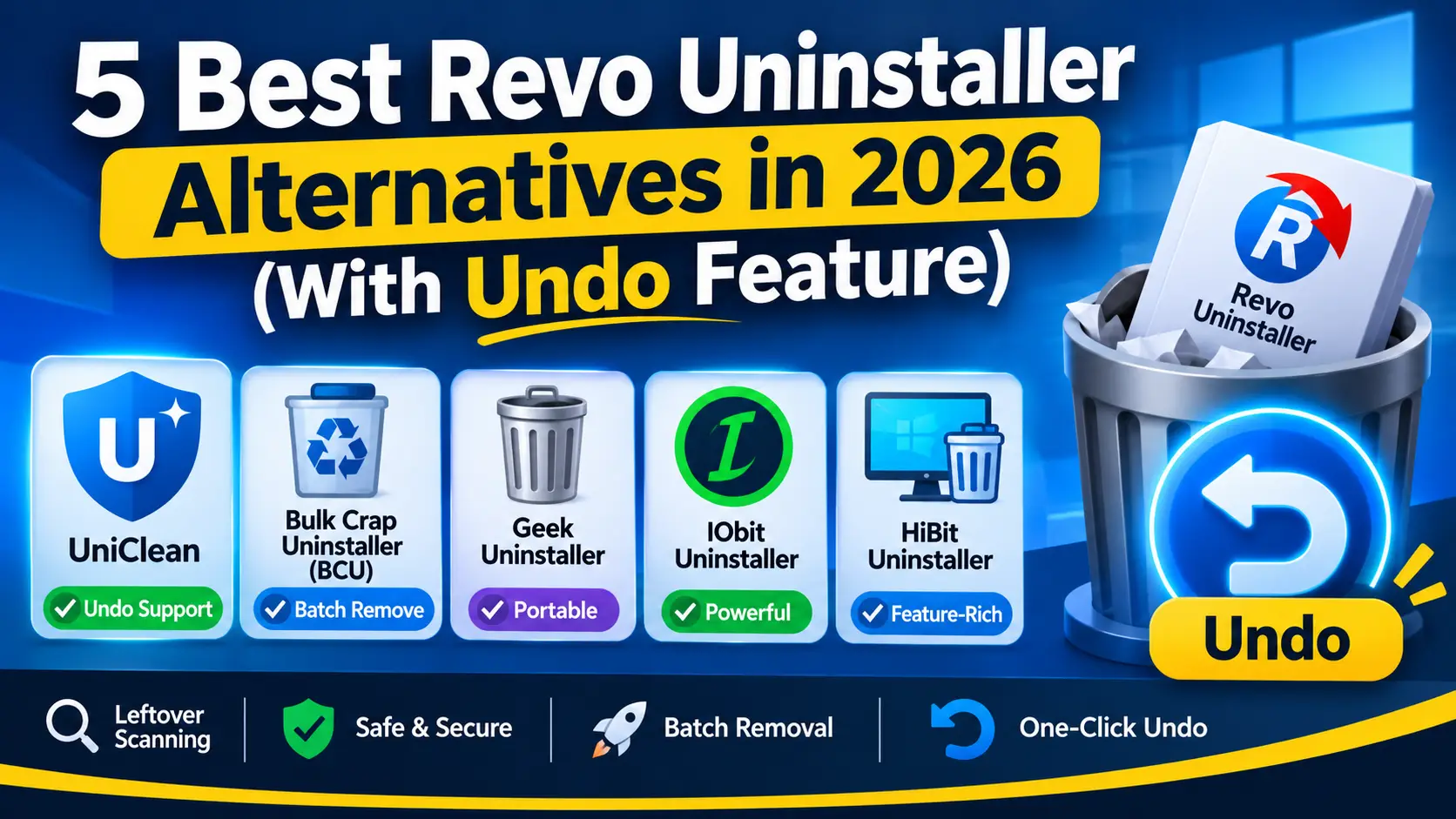
7 Best Uninstaller Software for Windows 11 in 2026
We compare the 7 best uninstaller software options for Windows 11 in 2026, from built-in tools to dedicated cleaners, on leftovers, safety, batch removal and undo.
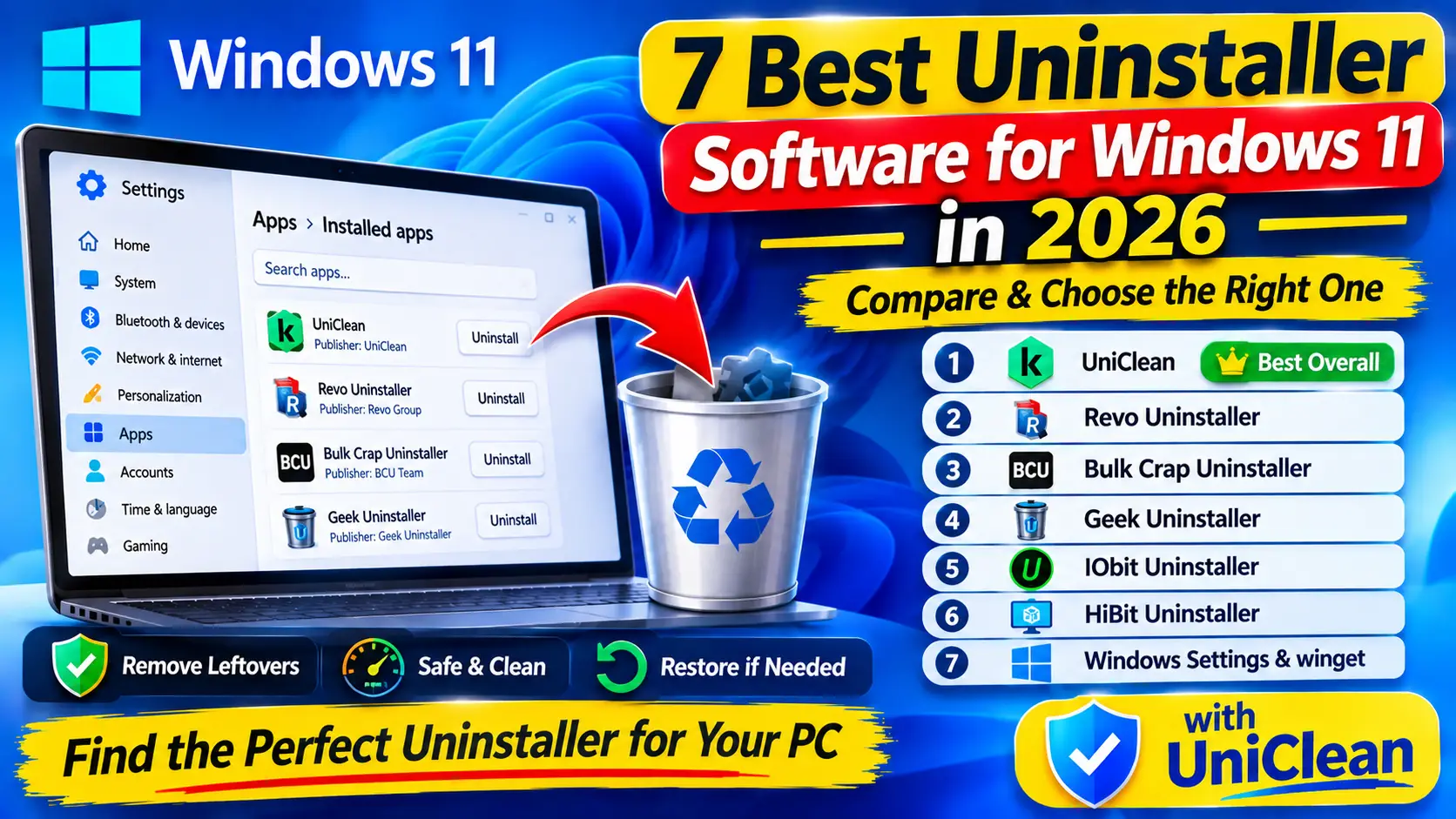
Table of contents
- How we compared them
- 1. UniClean — best overall for safe, complete removal
- 2. Revo Uninstaller — best long-established option
- 3. Bulk Crap Uninstaller — best for batch removal
- 4. Geek Uninstaller — best lightweight portable tool
- 5. IObit Uninstaller — best all-in-one suite
- 6. HiBit Uninstaller — best free toolbox
- 7. Windows Settings and winget — best built-in option
- Comparison table
- Restore points vs a per-program vault
- Which uninstaller should you pick?
Windows 11 can uninstall software on its own, but it rarely removes everything. Leftover folders, registry keys, services and scheduled tasks pile up over time, and some programs refuse to uninstall at all. Here are the seven best uninstaller software options for Windows 11 in 2026, what each does well, and how to pick the right one.
How we compared them
We looked at the features that actually decide whether an uninstall is clean and safe:
- Leftover scanning of Program Files, ProgramData, AppData and the registry after the vendor's uninstaller runs.
- Safety net: restore points, registry backups, or a per-program undo.
- Batch removal for clearing many programs at once.
- Store and bloatware support for Windows 11's preinstalled apps.
- Cleanliness: no bundled offers, no unnecessary data collection.
Get UniClean for Windows 11 →
Download UniClean1. UniClean — best overall for safe, complete removal
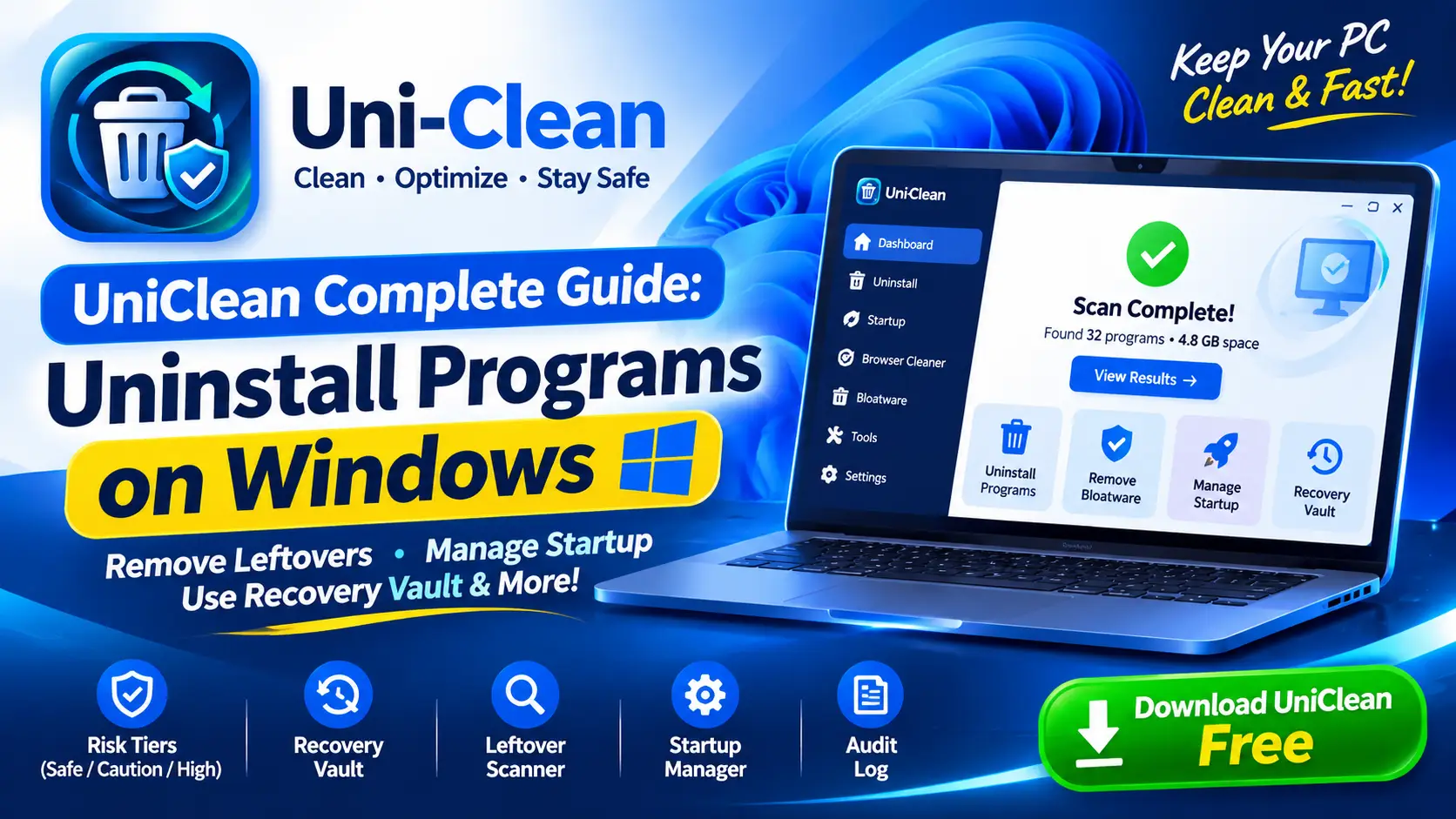
UniClean is a free uninstaller and cleaner for Windows 11 and 10. Its standout feature is the Recovery Vault: before anything is deleted, UniClean backs up the program's files, registry keys, services and scheduled tasks into an AES-256 encrypted vault on your PC. The Restore Center brings a removed program back with one click, even after a restart.
Every item is labeled with a risk tier: Safe, Caution or High Risk. High-risk items such as drivers and security software always get a forced vault backup. UniClean also includes a Bloatware Scanner for OEM apps from Dell, HP, Lenovo, ASUS, Acer and MSI plus Windows 11 Store apps, an antivirus remover, a startup manager, an audit log of everything installed on your PC, and portable mode. No telemetry, no account, fully offline.
Get UniClean for Windows 11 →
Download UniClean2. Revo Uninstaller — best long-established option
Revo has a free edition and a paid Pro tier. It offers three leftover scan modes, Hunter Mode for removing apps by their window or tray icon, and forced uninstall in Pro. It creates a System Restore point before uninstalling, and Pro adds registry and file backups. It is a trusted choice; see UniClean vs Revo for how the safety nets differ.
Get UniClean for Windows 11 →
Download UniClean3. Bulk Crap Uninstaller — best for batch removal
BCU is free and open source under Apache-2.0. It is unbeatable for removing dozens of apps in one pass, supports quiet uninstalls, detects orphaned entries and Store apps, and ships a portable build. It can create a restore point before a batch. The interface is dense, so it suits power users best.
Get UniClean for Windows 11 →
Download UniClean4. Geek Uninstaller — best lightweight portable tool
Geek Uninstaller is a tiny portable app with a free edition and a paid Pro tier. It runs the native uninstaller, scans for leftovers, and can force-remove stubborn entries. There is no built-in backup, so rely on System Restore.
Get UniClean for Windows 11 →
Download UniClean5. IObit Uninstaller — best all-in-one suite
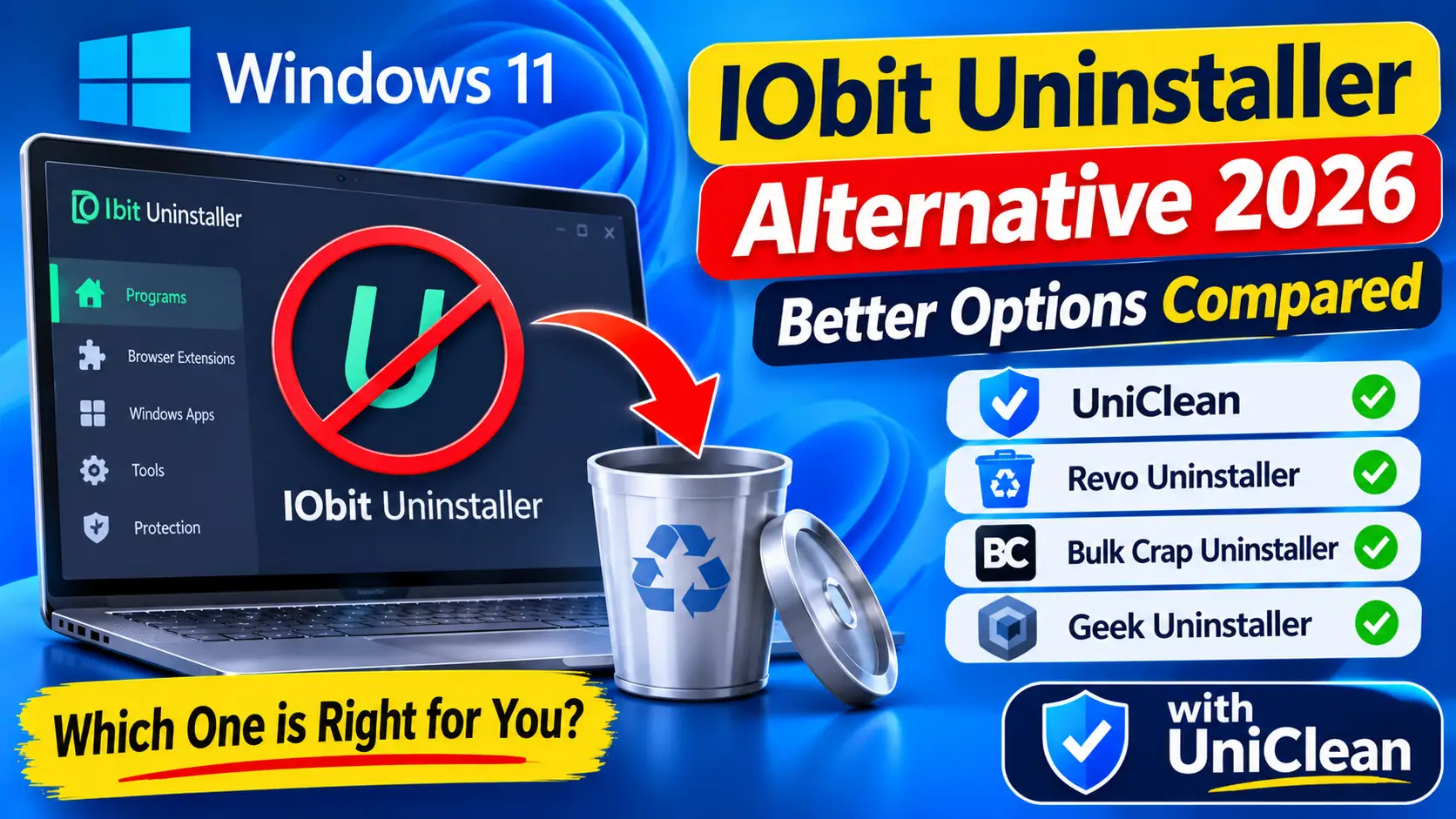
IObit Uninstaller has a free edition and a paid Pro tier with leftover scanning, browser plugin removal, a software updater and stubborn program removal. It can create a restore point first. The downside is promotion of other IObit products during setup and in the app. Read our IObit Uninstaller alternative guide for more.
Get UniClean for Windows 11 →
Download UniClean6. HiBit Uninstaller — best free toolbox
HiBit is free and portable with forced uninstall, leftover scanning, a startup manager, a registry cleaner and restore-point tools. It packs a lot of utilities in, which some users love and others find cluttered.
Get UniClean for Windows 11 →
Download UniClean7. Windows Settings and winget — best built-in option
Windows 11's own uninstaller lives at Settings → Apps → Installed apps. Click the three dots next to an app and choose Uninstall. The classic Programs and Features window is still available by pressing Win + R and running appwiz.cpl.
For command-line users, winget is built into Windows 11:
winget list
winget uninstall --id Vendor.AppName
Both methods run the vendor's own uninstaller and nothing more. They will not look for leftovers, but they are free, trustworthy and fine for simple apps.
Get UniClean for Windows 11 →
Download UniCleanComparison table
| Feature | UniClean | Revo | BCU | Geek | IObit | HiBit | Windows |
|---|---|---|---|---|---|---|---|
| Free | ✅ | ✅ | ✅ | ✅ | ✅ | ✅ | ✅ |
| Leftover scan | ✅ | ✅ | ✅ | ✅ | ✅ | ✅ | ❌ |
| Backup before uninstall | ✅ vault | ✅ restore point | ✅ restore point | ❌ | ✅ restore point | ⚠️ manual | ❌ |
| Per-program one-click undo | ✅ | ❌ | ❌ | ❌ | ❌ | ❌ | ❌ |
| Risk labels | ✅ | ⚠️ scan modes | ❌ | ❌ | ❌ | ❌ | ❌ |
| OEM bloatware detection | ✅ | ❌ | ⚠️ | ❌ | ⚠️ | ⚠️ | ❌ |
| Antivirus remover | ✅ | ❌ | ❌ | ❌ | ❌ | ❌ | ❌ |
| Portable | ✅ | ✅ | ✅ | ✅ | ❌ | ✅ | ❌ |
| Open source | ❌ | ❌ | ✅ | ❌ | ❌ | ❌ | ⚠️ winget |
⚠️ means partial, limited to a paid tier, or done through a separate manual tool. Features change between releases, so check each vendor's current version.
Get UniClean for Windows 11 →
Download UniCleanRestore points vs a per-program vault
Several tools create a Windows System Restore point before uninstalling. That is a good safety net, but it is system-wide: restoring it rolls back every program, driver and setting change since it was created, requires a restart, and depends on System Protection being enabled. A per-program vault like UniClean's restores only the one uninstall you regret, including its files, registry keys, services and scheduled tasks, and leaves everything else as it is. The two approaches work best together.
Get UniClean for Windows 11 →
Download UniCleanWhich uninstaller should you pick?
- Most people: UniClean for complete, reversible removal with clear risk labels.
- Technicians clearing many PCs: BCU for batch speed.
- Minimalists: Geek Uninstaller or the built-in Settings and winget.
- Fans of all-in-one suites: IObit or HiBit, reading each setup screen carefully.
For a step-by-step walkthrough, read the UniClean complete guide, or download UniClean and run your first scan.
Get UniClean for Windows 11 →
Download UniCleanFrequently asked questions
For most people, UniClean is the best balance of thorough leftover removal and safety, thanks to risk labels and a per-program Recovery Vault. Bulk Crap Uninstaller is the top pick for batch removal.
For simple apps, often yes. But it only runs the vendor's uninstaller, which can leave folders, registry keys, services and scheduled tasks behind.
Yes. Run winget list to find the app, then winget uninstall with its ID. It is quick and scriptable but does not scan for leftovers.
Established ones are, but any tool that deletes registry keys can cause problems. Prefer one that labels risk and backs up what it removes.
Written by
UniClean Team
The UniClean team builds safe, reversible Windows cleanup tools at UniSoftware. Every guide is tested on clean Windows 11 and Windows 10 installs before publishing. About us