Bloatware6 min read
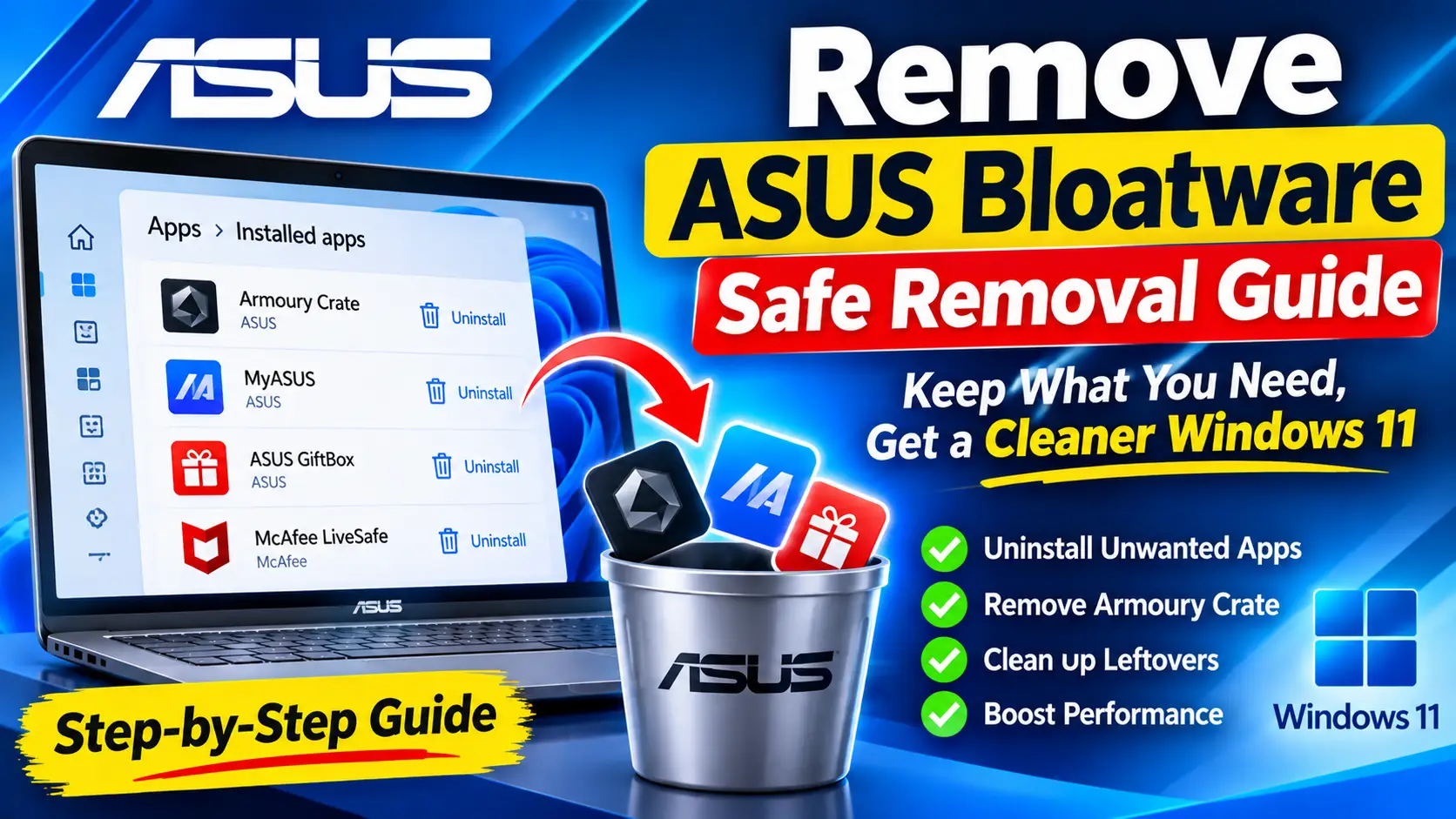
Remove ASUS Bloatware — Safe Removal Guide
A safe, step-by-step guide to removing ASUS bloatware on Windows 11: what Armoury Crate, MyASUS and other preloaded apps do, and which ones you should keep.
Read Guide
ASUS laptops and motherboards install MyASUS, Armoury Crate, lighting tools and promotional apps. Some control fans, hotkeys and performance modes, and others are pure extras. This guide covers what to keep, what to remove and how to stop it coming back.
These are the locations a standard uninstall commonly misses.
| Location | Type | Note |
|---|---|---|
C:\Program Files\ASUS\ARMOURY CRATE Lite Service | folder | Armoury Crate background service files. |
C:\Program Files (x86)\ASUS | folder | Older ASUS utilities and shared components. |
C:\ProgramData\ASUS | folder | Settings, logs and download caches. |
HKLM\SOFTWARE\ASUS | registry | Configuration for ASUS software. |
ArmouryCrateService | service | Main Armoury Crate service. |
ASUSOptimization | service | Part of ASUS System Control Interface used by MyASUS. |
ASUSSoftwareManager | service | Installs and updates ASUS apps in the background. |
B9ECED6F.ASUSPCAssistant | folder | MyASUS Store app package name, shown by Get-AppxPackage. |
UniClean's Risk Tier for each app — keep anything marked High Risk unless you know you don't need it.
McAfee LiveSafe (trial)
Antivirus trial; Microsoft Defender takes over once removed.
ASUS GiftBox
Promotional app store and offers.
GlideX
Screen sharing and extension app; optional.
WPS Office (preinstalled)
Third-party office suite bundled on some models.
MyASUS
Settings, updates and support; useful for battery care mode.
Armoury Crate
Fan, performance and RGB control on gaming models; use the official uninstall tool.
AURA Sync / Aura Creator
RGB lighting control; lights may revert to default if removed.
ScreenXpert
Needed for ScreenPad or dual-screen models.
ASUS Splendid
Display color profiles; colors may change if removed.
ASUS System Control Interface
Driver package for hotkeys and power features.
ASUS Keyboard Hotkeys
Required for many Fn key functions.
The Windows-only way. It works, but takes longer and has no undo.
Open System Protection and create a restore point before removing anything.
Restart into BIOS or UEFI setup and disable the Armoury Crate download option, often found under Advanced or Tool settings.
Go to Settings > Apps > Installed apps and uninstall trial and promotional apps you do not use.
Download the Armoury Crate Uninstall Tool from the ASUS support site, run it as administrator and restart when it finishes.
Uninstall MyASUS from Installed apps. Keep ASUS System Control Interface if you still want hotkeys and power features.
Check Task Manager > Startup apps and Task Scheduler for ASUS entries and disable leftovers.
Restart and check fan behavior, keyboard backlight, Fn keys and performance modes.
Faster, complete, and reversible — everything is backed up to the Recovery Vault first.
Open UniClean and scan. ASUS apps, services and Store apps are listed with their components.
Promos are Safe, Armoury Crate and MyASUS are Caution, and System Control Interface and hotkey drivers are High Risk.
Selected apps, services and scheduled tasks are saved to the encrypted vault before removal.
UniClean removes the apps and clears ArmouryCrateService, leftover folders, registry keys and tasks.
Restart. If fans or hotkeys misbehave, restore the component from the Restore Center.
Yes, but fan profiles, performance modes and RGB control may revert to defaults. Use the official Armoury Crate Uninstall Tool for a clean removal.
A BIOS or UEFI option on many ASUS devices downloads it automatically. Disable that option in BIOS setup.
Yes. Your PC works without it, though you lose its settings panel and battery care options.
It is a driver package used by MyASUS and hotkeys. Keep it unless you are sure you do not need those features.
A safe, step-by-step guide to removing ASUS bloatware on Windows 11: what Armoury Crate, MyASUS and other preloaded apps do, and which ones you should keep.
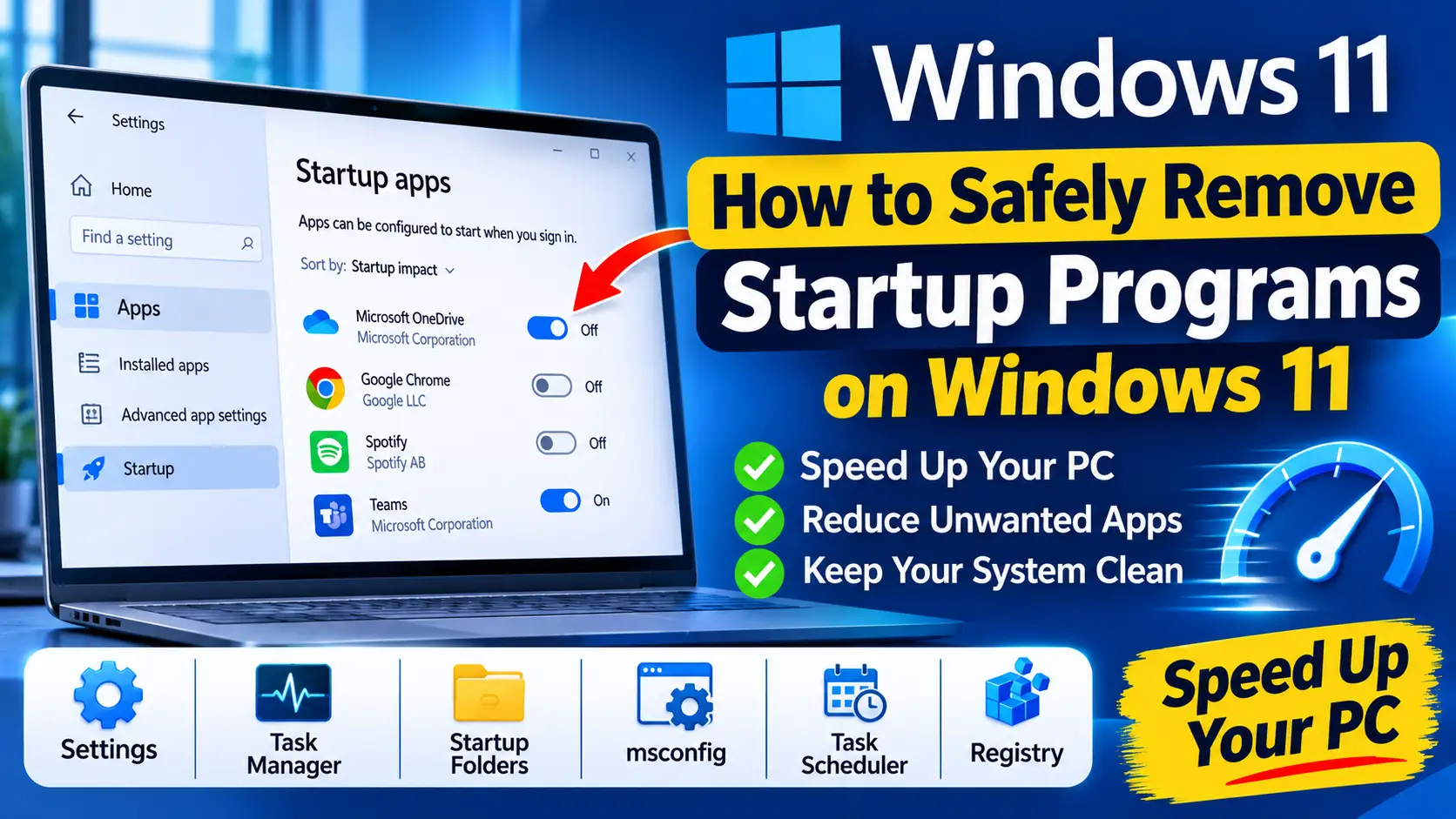
Learn how to remove startup programs on Windows 11 safely with Settings, Task Manager, the Startup folder, services, Task Scheduler and the registry.
Free download. No account needed. Windows 11 & 10. Fully local.