How-To5 min read
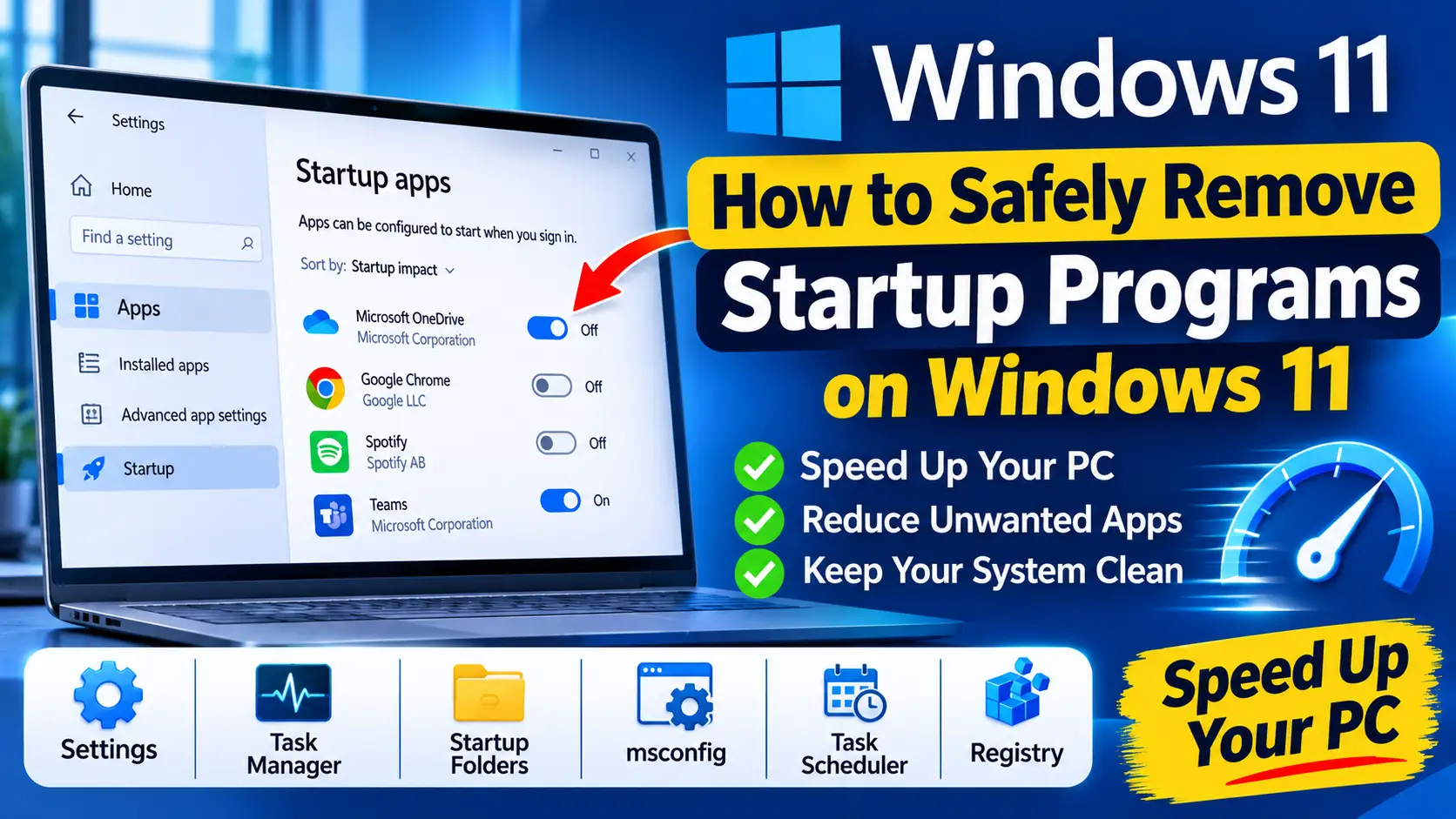
How to Safely Remove Startup Programs on Windows 11
Learn how to remove startup programs on Windows 11 safely with Settings, Task Manager, the Startup folder, services, Task Scheduler and the registry.
Read Guide
HP laptops and desktops come with support tools, analytics services, security add-ons and trial software. Some are tied to hotkeys, audio and system events, while others are safe to remove. This guide explains which is which and how to clean up properly.
These are the locations a standard uninstall commonly misses.
| Location | Type | Note |
|---|---|---|
C:\Program Files (x86)\HP\HP Support Framework | folder | HP Support Solutions Framework files. |
C:\ProgramData\HP | folder | Logs and data from HP tools. |
HKLM\SOFTWARE\HP | registry | Configuration for HP apps. |
HKLM\SOFTWARE\Hewlett-Packard | registry | Older HP configuration keys. |
HP Support Solutions Framework Service | service | Background service used by HP Support Assistant. |
HpTouchpointAnalyticsService | service | HP analytics service that collects device telemetry. |
HP tasks in Task Scheduler | task | Update and analytics tasks that can remain after removal. |
UniClean's Risk Tier for each app — keep anything marked High Risk unless you know you don't need it.
McAfee LiveSafe (trial)
Antivirus trial; Microsoft Defender takes over once removed.
HP JumpStart Bridge / HP JumpStart Launch
First-run setup and offers; not needed after setup.
HP Documentation
Offline user manuals; the same documents are online.
HP Connection Optimizer
Wi-Fi switching helper; Windows handles this on its own.
HP Insights / HP Touchpoint Analytics Client
Telemetry and analytics; not needed for normal use.
HP Support Assistant
Driver and BIOS updates plus diagnostics; keep it if you rely on it for updates.
HP Smart
Needed for some HP printer features; safe to remove without an HP printer.
HP Wolf Security
Security add-on with several components; remove in the correct order.
HP Audio Switch
Switches audio devices; Windows can do this too.
Bang and Olufsen Audio Control
Audio tuning linked to the audio driver.
HP System Event Utility
Handles function keys and system events; removing it can break hotkeys.
HP Hotkey Support
Required for many HP function key actions.
The Windows-only way. It works, but takes longer and has no undo.
Open System Protection and create a restore point before uninstalling anything.
Go to Settings > Apps > Installed apps and uninstall trial software and promotional apps you do not use.
Uninstall HP Insights or HP Touchpoint Analytics Client if present, which also removes the analytics service.
If you do not need it, uninstall HP Support Assistant, then remove HP Support Solutions Framework.
If removing HP Wolf Security, uninstall its components one by one, starting with HP Wolf Security and ending with the console and update components.
Check Task Manager > Startup apps and Task Scheduler for leftover HP entries and disable them.
Restart and confirm that function keys, audio, webcam shortcuts and brightness still work.
Faster, complete, and reversible — everything is backed up to the Recovery Vault first.
Open UniClean and run the Bloatware Scanner to list HP apps and Windows 11 Store apps.
Promos are marked Safe, support tools Caution and hotkey or event utilities High Risk.
Selected apps, services, tasks and registry keys are saved to the encrypted vault before removal.
UniClean uninstalls the apps and clears leftover services, scheduled tasks, folders and registry keys.
Restart Windows and test your hotkeys and audio. Restore anything from the Restore Center if needed.
It is useful for driver and BIOS updates and diagnostics, but you can remove it if you update drivers another way.
Yes. It collects usage data and is not needed for your PC to work.
Its components depend on each other. Remove them one at a time, starting with the main HP Wolf Security entry.
Only if you remove HP System Event Utility or HP Hotkey Support. Keep those, or restore them if keys stop working.
Learn how to remove startup programs on Windows 11 safely with Settings, Task Manager, the Startup folder, services, Task Scheduler and the registry.
Free download. No account needed. Windows 11 & 10. Fully local.