How-To6 min read
UniClean Complete Guide: Uninstall Programs on Windows
The complete UniClean guide to uninstalling programs on Windows, from the first scan and risk tiers to leftover removal, the Recovery Vault and portable mode.
Read Guide
Uninstalled the wrong program, or removed something that turned out to matter? Windows has no undo button for uninstalls, but you can often get the program and its settings back. This guide covers System Restore, reinstalling with your data intact and the one-click UniClean Restore Center.
These are the locations a standard uninstall commonly misses.
| Location | Type | Note |
|---|---|---|
%AppData% (C:\Users\<you>\AppData\Roaming) | folder | Settings and profiles often survive an uninstall here. |
%LocalAppData% (C:\Users\<you>\AppData\Local) | folder | Caches and local data that may still be present. |
C:\ProgramData | folder | Shared settings and license files for some programs. |
HKCU\Software | registry | Per-user settings, usually kept after uninstall. |
HKLM\SOFTWARE\Microsoft\Windows\CurrentVersion\Uninstall | registry | The uninstall entry is removed, but checking here confirms the program is gone. |
Documents folder | folder | Many apps keep projects and saves in Documents, which uninstalls do not touch. |
The Windows-only way. It works, but takes longer and has no undo.
Avoid installing new software until you have tried recovery, so existing restore points and data are not overwritten.
Press Win + R, run rstrui, and look for a restore point from before the uninstall. Use Scan for affected programs to see what will change.
Choose the restore point and follow the wizard. Windows restarts and restores system files, registry and programs, but not personal files.
Reinstall from the Microsoft Store, the vendor website or winget, for example winget install followed by the program name.
Most programs pick up settings left in AppData and Documents automatically after reinstalling.
Sign in to the vendor account or enter your license key to reactivate paid software.
Faster, complete, and reversible — everything is backed up to the Recovery Vault first.
If you removed the program with UniClean, open the Restore Center to see every removal stored in the Recovery Vault.
Search by name or date. Each entry shows the files, registry keys, services and scheduled tasks that were backed up.
Click Restore. UniClean decrypts the AES-256 vault and puts everything back in its original location.
Restart Windows if services or drivers were restored. Restores still work after earlier restarts.
Not directly. You can use System Restore if a restore point exists, or reinstall the program, which often picks up your old settings.
It can restore programs that were installed when the restore point was created, but it does not restore personal files.
No. Uninstallers delete files directly, so they do not appear in the Recycle Bin.
Before deleting anything, UniClean backs up files, registry keys, services and scheduled tasks into an encrypted Recovery Vault that you can restore in one click.
The complete UniClean guide to uninstalling programs on Windows, from the first scan and risk tiers to leftover removal, the Recovery Vault and portable mode.
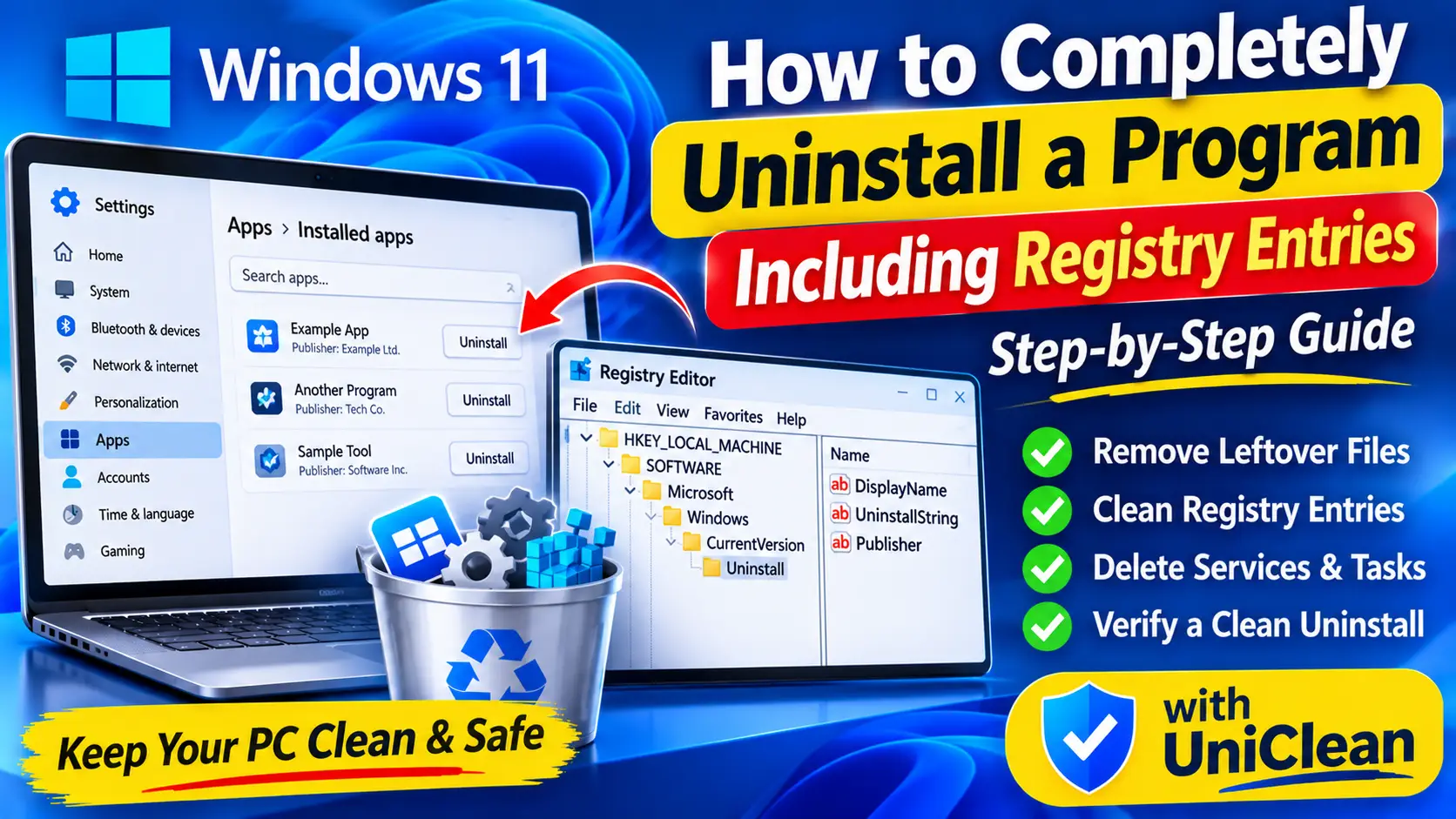
Standard uninstalls leave files and registry keys behind. Here is how to remove a program completely on Windows, including registry entries, services and tasks.
Free download. No account needed. Windows 11 & 10. Fully local.