Skip to content
UniClean
Step-by-step guide 30 min Moderate

How to Remove Company Software from Your Personal Laptop

If you used your own laptop for work, it may still have your employer management agent, security tools and policies on it. The right order matters: disconnect the work account first, then clean up what remains. If the device belongs to your company, talk to IT instead.

Why Company-installed software is hard to remove

  • Device management such as Microsoft Intune can reinstall required apps and reapply policies as long as the device stays enrolled.
  • Management agents run as services and scheduled tasks under the EnterpriseMgmt folder, which are not obvious in Installed apps.
  • Policies applied to Windows, Edge and Chrome stay in the registry and can lock settings even after apps are removed.
  • Some company security tools have tamper protection and need an uninstall password or offboarding from the admin console.

What gets left behind

These are the locations a standard uninstall commonly misses.

LocationTypeNote
HKLM\SOFTWARE\Microsoft\EnrollmentsregistryMDM enrollment records.
HKLM\SOFTWARE\Microsoft\PolicyManagerregistryPolicies delivered through MDM.
HKLM\SOFTWARE\PoliciesregistryWindows and browser policies, including forced extensions.
Task Scheduler folder \Microsoft\Windows\EnterpriseMgmttaskMDM sync tasks for each enrollment.
C:\Program Files (x86)\Microsoft Intune Management ExtensionfolderIntune agent used to deploy apps and scripts.
C:\ProgramData\Microsoft\IntuneManagementExtensionfolderIntune agent logs and cached content.
IntuneManagementExtensionserviceMicrosoft Intune Management Extension service.

Method 1: Remove Company-installed software manually

The Windows-only way. It works, but takes longer and has no undo.

  1. 1

    Confirm the device is yours

    Only continue on a personal device. On a company-owned PC, contact IT, and check your employment agreement before removing anything.

  2. 2

    Back up your files

    Copy personal files somewhere safe, and keep any work files your employer needs returned.

  3. 3

    Disconnect the work or school account

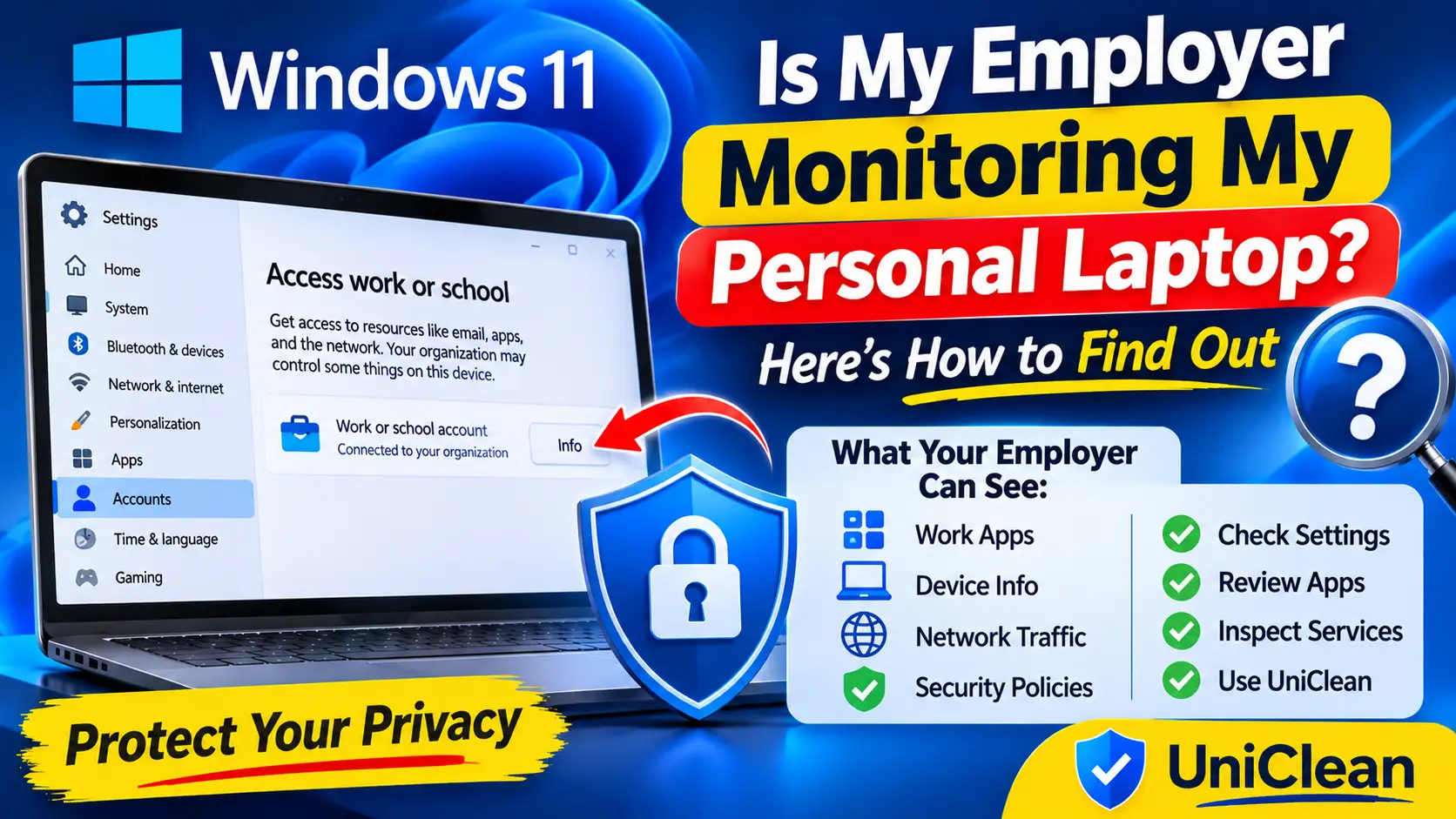
    Open Settings > Accounts > Access work or school, select the work account and click Disconnect, then restart.

  4. 4

    Uninstall company apps

    Go to Settings > Apps > Installed apps and remove Company Portal and work apps that remain, such as VPN clients or remote support tools.

  5. 5

    Remove browser profiles

    Remove work profiles from Edge and Chrome, then check edge://policy and chrome://policy for leftover policies.

  6. 6

    Clean leftover tasks and policies

    In Task Scheduler, check \Microsoft\Windows\EnterpriseMgmt for empty enrollment folders. Back up the registry before removing leftover policy keys.

  7. 7

    Restart and verify

    Restart, confirm Access work or school is empty and that the message Some settings are managed by your organization is gone.

Recommended

Method 2: Remove Company-installed software with UniClean

Faster, complete, and reversible — everything is backed up to the Recovery Vault first.

  1. 1

    Disconnect the work account first

    UniClean will not bypass device management. Disconnect from Settings > Accounts > Access work or school before cleaning up.

  2. 2

    Review the Audit Log

    See every program installed by your employer or management agent, with install date and installer.

  3. 3

    Check Risk Tiers

    Management agents and security sensors are marked High Risk, so UniClean forces a vault backup.

  4. 4

    Remove and sweep leftovers

    Remove leftover agents, then let the Leftover Scanner clear services, scheduled tasks, folders and registry keys.

  5. 5

    Restart and keep the vault

    Restart Windows. Everything removed stays in the Recovery Vault, so you can restore it if needed.

Pro tips

  • Never remove management or security software from a company-owned device yourself.
  • Always disconnect the work or school account before uninstalling agents, or they may reinstall.
  • If a security tool asks for an uninstall password, ask IT to offboard the device.
  • Return or delete company data as your employer requires before you clean up.

Company-installed software: frequently asked questions

Yes, once you have disconnected the work account and handled company data as required. Check your employment agreement first if you still work there.

Windows unenrolls the device from management, and policies and required apps are usually removed or stop being enforced.

Leftover policy keys remain in the registry. Remove them carefully after a backup, or let UniClean sweep them with a vault backup.

No. Disconnecting a work or school account does not affect your personal Microsoft account.

All guides

Clean up work software safely with UniClean

Free download. No account needed. Windows 11 & 10. Fully local.